
Agency Admin - Privacy Groups
Topics covered in this article:
- Privacy Groups - The Basics
- View Privacy Groups
- Create Privacy Group
- Assign Navigators to a Privacy Group
- Remove Navigators from a Privacy Group
- Rename Privacy Group
- Delete Privacy Group
Privacy Groups - The Basics
Privacy Groups are assigned to  case notes upon note creation. Only navigators who are within a Privacy Group can see the Privacy Group option in the drop-down list.
Privacy Groups ensure that confidential, sensitive, or medical information can be documented in client  case notes while maintaining information privacy and HIPAA compliance. Only those individuals within a specific Privacy Group have access to specific case notes, keeping private client information private. For example, while a Substance Abuse Specialist could share the same Roles and Permissions as a Behavioral Health Specialist, assigning a Privacy Group to a case note could prohibit them from seeing each other's sensitive case notes.
Though Agency Admins control Privacy Group creation and assignment, they cannot view case notes that have been assigned to a Privacy Group.
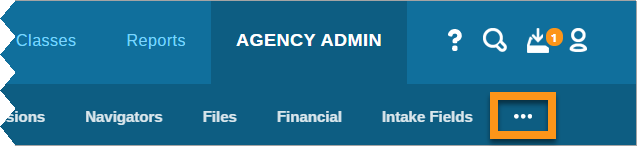
Privacy Groups are housed under the Agency Settings tab, which is the rightmost tab available under Agency Admin. If you do not see this tab after clicking Agency Admin, click the three dots in the sub navigation bar to expand and display Agency Settings.
View Privacy Groups
- Click Agency Admin from the system navigation bar
- Click Agency Settings
- Click the Privacy Groups tab listed on the left
- All existing Privacy Groups are listed
Create Privacy Group
- Click Agency Admin from the system navigation bar
- Click Agency Settings
- Click the Privacy Groups tab listed on the left
- Enter Privacy Group name in the text field
- Click Add Privacy Group
- Privacy Group will appear below
Assign Navigators to a Privacy Group
- Click Agency Admin from the system navigation bar
- Click Agency Settings
- Click the Privacy Groups tab listed on the left
- Locate the Privacy Group to which you wish to assign navigators
- Click the
 person icon
 - From the list of Available Navigators on the left, click each navigator you wish to assign to this Privacy Group
- Assigned Navigators will be listed on the right
- System saves automatically
Remove Navigators from a Privacy Group
- Click Agency Admin from the system navigation bar
- Click Agency Settings
- Click the Privacy Groups tab listed on the left
- Locate the Privacy Group to which you wish to remove navigators
- Click the person icon
- From the list of Assigned Navigators on the right, locate the navigator(s) you wish to remove from this Privacy Group
- Click the
 delete icon next to their username
 - Navigator will return to the list of Available Navigators on the right
- System saves automatically
Rename Privacy Group
- Click Agency Admin from the system navigation bar
- Click Agency Settings
- Click the Privacy Groups tab listed on the left
- Locate the Privacy Group you wish to rename
- Click the
 settings icon
 - Rename the Privacy Group
- System will save automatically
Delete Privacy Group
Important!! Deleting a Privacy Group will remove the Privacy Group restriction on all case notes to which it was assigned, making the case notes accessible to any user with the Notes Role Permission enabled. We highly recommend that instead of deleting a Privacy Group, it is kept in the system but with all navigators removed.
If you have any questions regarding maintaining information privacy and HIPAA compliance, please do not hesitate to contact the eLogic Team for guidance.
- Click Agency Admin from the system navigation bar
- Click Agency Settings
- Click the Privacy Groups tab listed on the left
- Locate the Privacy Group you wish to delete
- Click the
 delete icon
Comments
0 comments
Please sign in to leave a comment.