
Agency Admin - Announcements
See Agency Admin - eLogic Network to learn more about the eLogic Network
If you prefer video walkthroughs, see VIDEO: Agency Admin - Announcements.
Topics covered in this article:
- Agency Announcements - The Basics
- Create Agency Announcement
- Add Link in Agency Announcement
- Edit Agency Announcement
- Resend Agency Announcement
- Delete Agency Announcement
- Network Announcements - The Basics
- Create Network Announcement
- Add Link in Agency Announcement
- Edit Network Announcement
- Resend Network Announcement
- Delete Network Announcement
Agency Announcements - The Basics
Announcements make it easy to send in-app bulletins to staff members in your organization. If you are an Admin for a Network, you can also send Announcements to organizations within your Network.
Announcements appear in the bottom right corner of eLogic Genesis and can be dismissed by clicking the X.
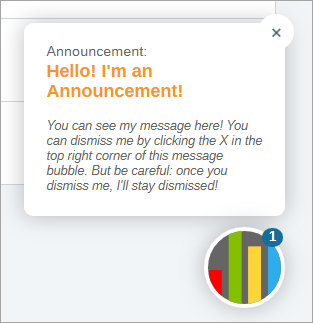
Announcements can take up to three minutes to appear for the selected navigators. After two weeks, a published Announcement will no longer appear for the selected navigators, even if they have not dismissed it.
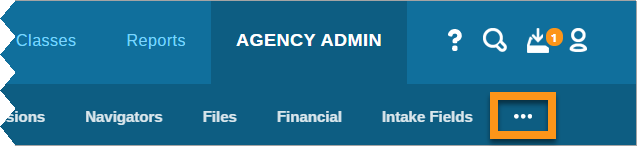
Announcements are housed under the Agency Settings tab, which is the rightmost tab available under Agency Admin. If you do not see this tab after clicking Agency Admin, click the three dots in the sub navigation bar to expand and display Agency Settings.
Create Agency Announcement
- Click Agency Admin from the system navigation bar
- Click the Agency Settings tab
- Click the Announcements tab listed on the left
- Decide who will receive your announcement:
- Send to every navigator in your organization: Select the "Send to all" checkbox. All navigators will appear below Navigator Recipient(s)
- Send to specific User Role(s) Recipients: From the User Role(s) Recipients drop-down list, select all Roles you wish to receive this Announcement. Announcement will be sent to all navigators assigned that Role and all navigator recipients will appear below Navigator Recipient(s)
- Select specific Navigator Recipient(s): From the Navigator Recipient(s) drop-down, select all individual navigators you wish to receive this Announcement
- Click the X next to each Role or navigator name you wish to remove from this Announcement
- Enter Announcement Title
- Enter Announcement Content
- If you wish to:
- Publish the Announcement, click Publish Announcement - please note it can take up to three minutes for the Announcement to appear for the selected recipients
- Save the Announcement to publish later, click Save Draft
- Published Announcements will appear under Announcement History on the right with the Published: date and time
- Saved Announcements will appear under Announcement History on the right and labeled Draft
Add Link in Agency Announcement
If you wish to add a hyperlink in the Announcement Content, follow the steps for Create Agency Announcement. When you enter your Announcement Content, use the formula below to create a link within the Announcement. You must use brackets around the web address and words that will be linked:
[web-address-here words-that-will-be-linked]
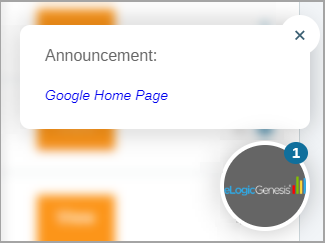
The text [www.google.com Google Home Page] appears as below:
Edit Agency Announcement
Regardless if an Announcement has been Published or saved as a Draft, they are edited the same way:
- Click Agency Admin from the system navigation bar
- Click the Agency Settings tab
- Click the Announcements tab listed on the left
- Locate the Announcement you wish to edit from Announcement History on the right
- Click the
 settings icon
 - Make any appropriate changes
- If you wish to:
- Publish the Announcement, click Publish Announcement - this will resend the Announcement to any recipient who already received it
- Save the Announcement to publish later, click Save Draft
Resend Agency Announcement
- Click Agency Admin from the system navigation bar
- Click the Agency Settings tab
- Click the Announcements tab listed on the left
- Locate the Announcement you wish to resend from Announcement History on the right
- Click the settings icon
- Click Publish Announcement
- Announcement is resent to all recipients
Delete Agency Announcement
Deleting an Agency Announcement will unpublish it for any navigators who have not dismissed it
- Click Agency Admin from the system navigation bar
- Click the Agency Settings tab
- Click the Announcements tab listed on the left
- Locate the Announcement you wish to delete from Announcement History on the right
- Click the
 delete icon
Network Announcements - The Basics
If you are an Agency Admin in a parent group, you have the option to send Network Announcements to entire organizations within your Network as well as the standard Agency Announcement (as outlined above).
If you wish to create Network Announcements, be sure the Network Announcements tab is selected when you create your Announcement:

If you wish to create Agency Announcements, be sure the Agency Announcements tab is selected when you create your Announcement:

Create Network Announcement
- Click Agency Admin from the system navigation bar
- Click the Agency Settings tab
- Click the Announcements tab listed on the left
- Click Network Announcements
- Decide who will receive your announcement:
- Send to every organization in your Network: Select the "Send to all" checkbox. All organizations will appear under Agency Recipient(s)
- Send to specific Organization(s): From the Agency Recipient(s) drop-down list, select all organizations you wish to receive this Announcement
- Click the X next to each organization name you wish to remove them from this Announcement
- Enter Announcement Title
- Enter Announcement Content
- If you wish to:
- Publish the Announcement, click Publish Announcement - please note it can take up to three minutes for the Announcement to appear for the selected recipients
- Save the Announcement to publish later, click Save Draft
- Published Announcements will appear under Announcement History on the right with the Published: date and time
- Saved Announcements will appear under Announcement History on the right and labeled Draft
Add Link in Agency Announcement
If you wish to add a hyperlink in the Announcement Content, follow the steps for Create Network Announcement. When you enter your Announcement Content, use the formula below to create a link within the Announcement. You must use [brackets] around the web address and words that will be linked:
[web-address-here words-that-will-be-linked]
The text [www.google.com Google Home Page] appears as below:
Edit Network Announcement
- Click Agency Admin from the system navigation bar
- Click the Agency Settings tab
- Click the Announcements tab listed on the left
- Click Network Announcements
- Locate the Announcement you wish to edit from Announcement History on the right
- Click the settings icon
- Make any appropriate changes
- If you wish to:
- Publish the Announcement, click Publish Announcement - this will resend the Announcement to any recipient who already received it
- Save the Announcement to publish later, click Save Draft
Resend Network Announcement
- Click Agency Admin from the system navigation bar
- Click the Agency Settings tab
- Click the Announcements tab listed on the left
- Click Network Announcements
- Locate the Announcement you wish to resend from Announcement History on the right
- Click the settings icon
- Click Publish Announcement
- Announcement is resent to all recipients
Delete Network Announcement
Deleting an Agency Announcement will unpublish it for any navigators who have not dismissed it
- Click Agency Admin from the system navigation bar
- Click the Agency Settings tab
- Click the Announcements tab listed on the left
- Click Network Announcements
- Locate the Announcement you wish to delete from Announcement History on the right
- Click the delete icon
Comments
0 comments
Please sign in to leave a comment.