
Custom Report Results
Topics covered in this article:
Report Results
Once you have run a Custom Report the report results will be displayed in a spreadsheet format and is called the spreadsheet view.
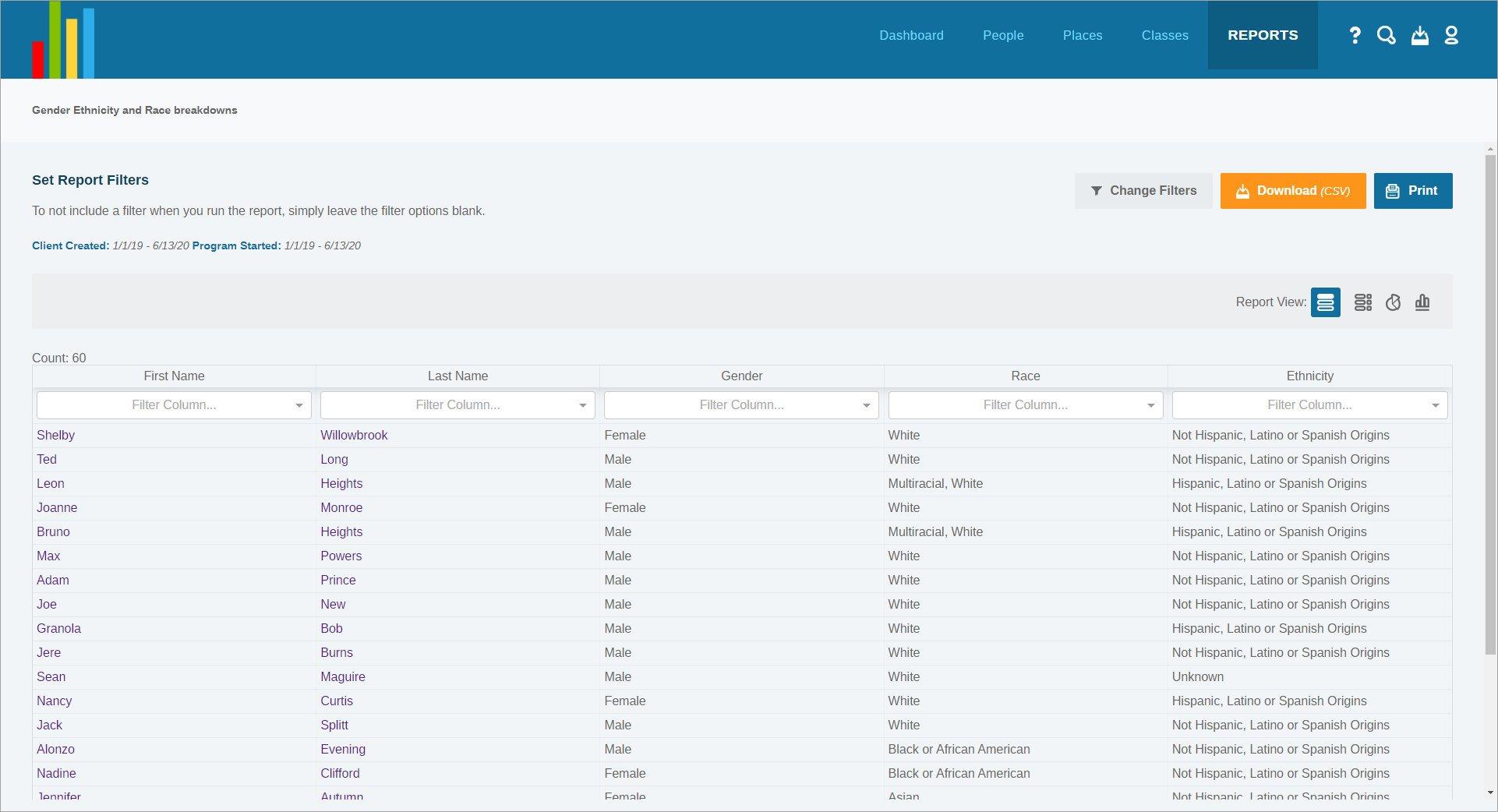
The report columns are the Column selections made during report creation and each row is based on what Custom Report Type was selected (a Demographic report will return one client per row, a Program report will return one program per row, an Interaction report will return one interaction per row, etc.).
Report Column Filters
Each column can be filtered, to narrow down desired results with a few clicks. Click the drop-down list under the desired column header and select the items you wish to filter. The results will filter in real-time in the spreadsheet below.
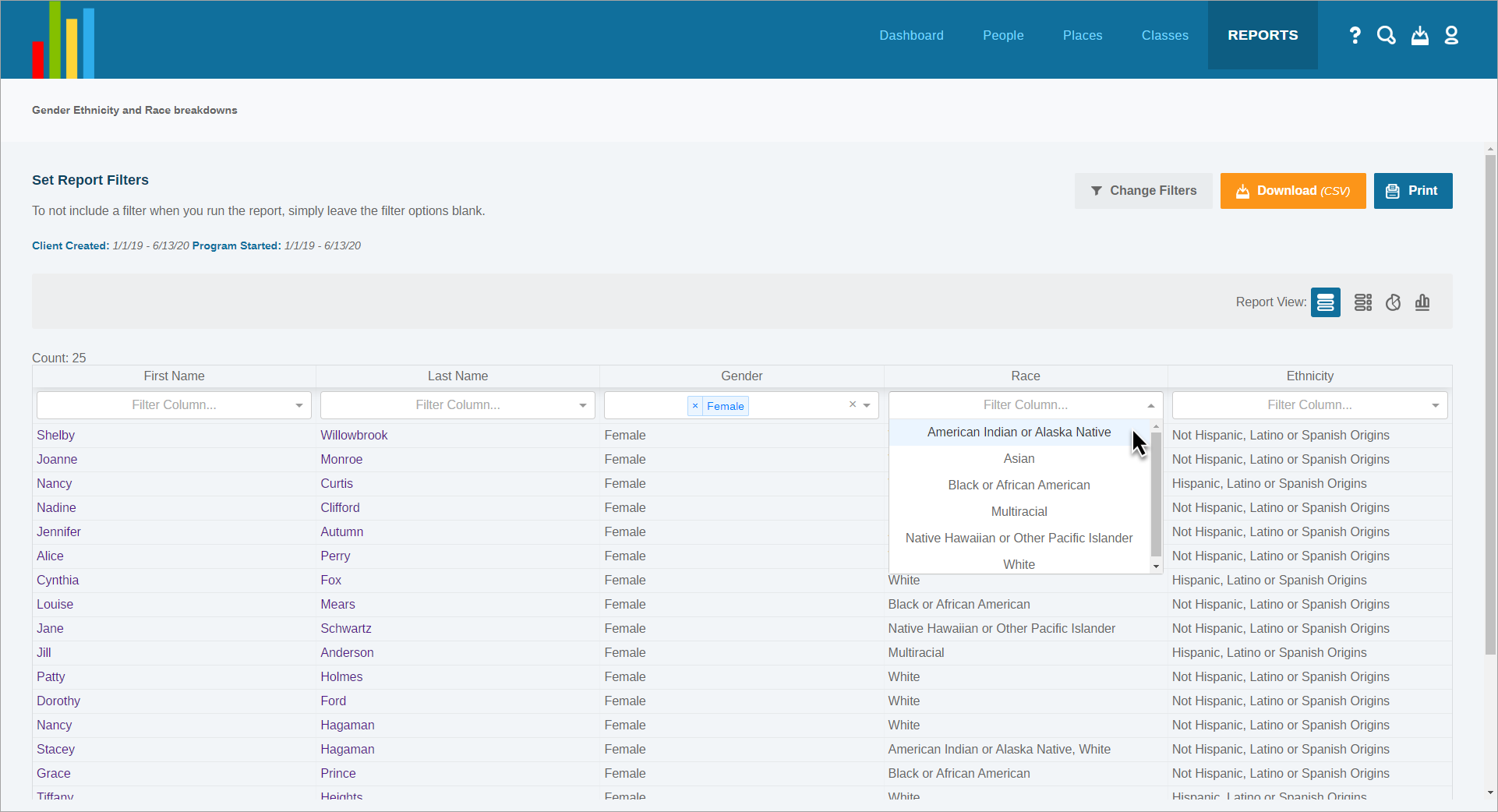
Note that each of these filters “stack” upon one another, meaning that multiple data points can be selected in multiple columns. Each selection will further narrow down the report results.
To remove column filter selections, click the x next to each data point you wish to remove. Click the x on the right side of the drop-down box to remove all data point selections.
Report Views
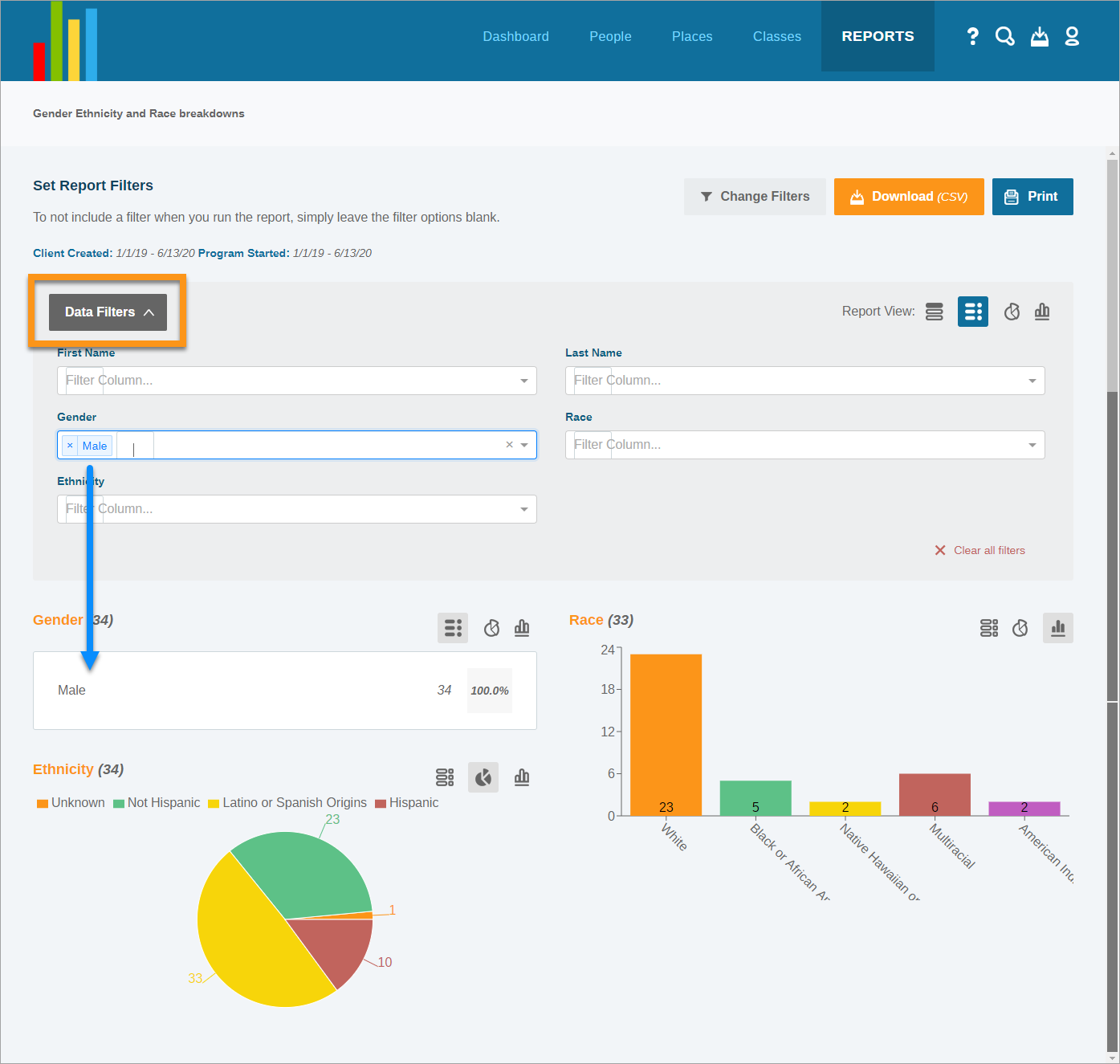
Above the report results, you will see Report View: followed by four icons.
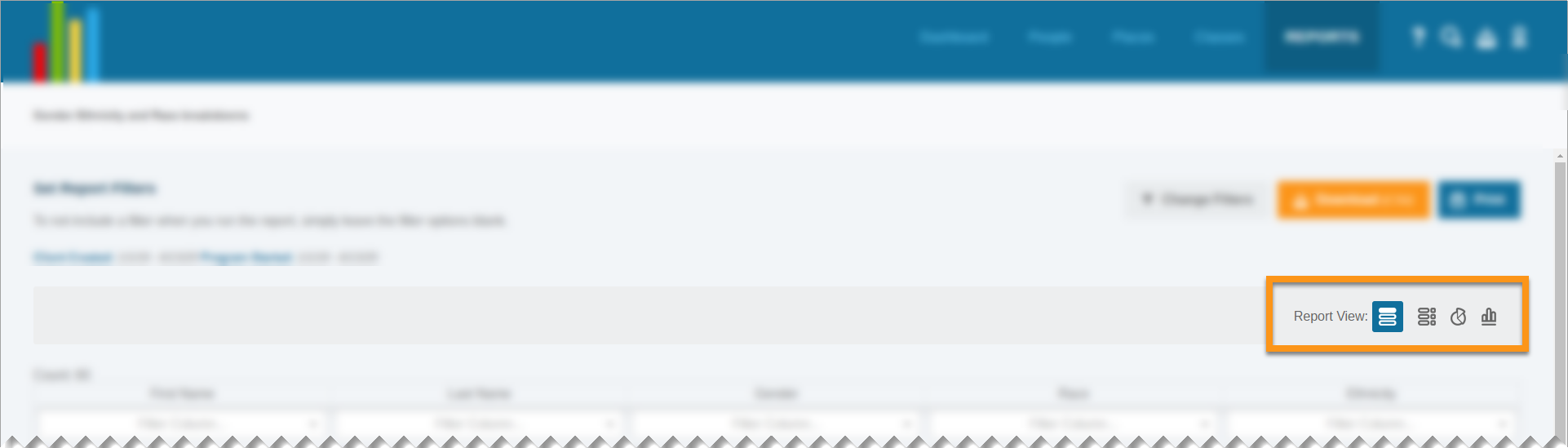
 Spreadsheet View - displays all data in a classic spreadsheet format
 List View - lists each report column in groups
 Pie Chart View - displays all data in pie chart form
 Bar Graph View - displays all data in a bar graph form
Selecting one of these views will arrange all data in the report results in the selected view's layout. The List, Pie Chart, or Bar Graph view can be mixed and matched.
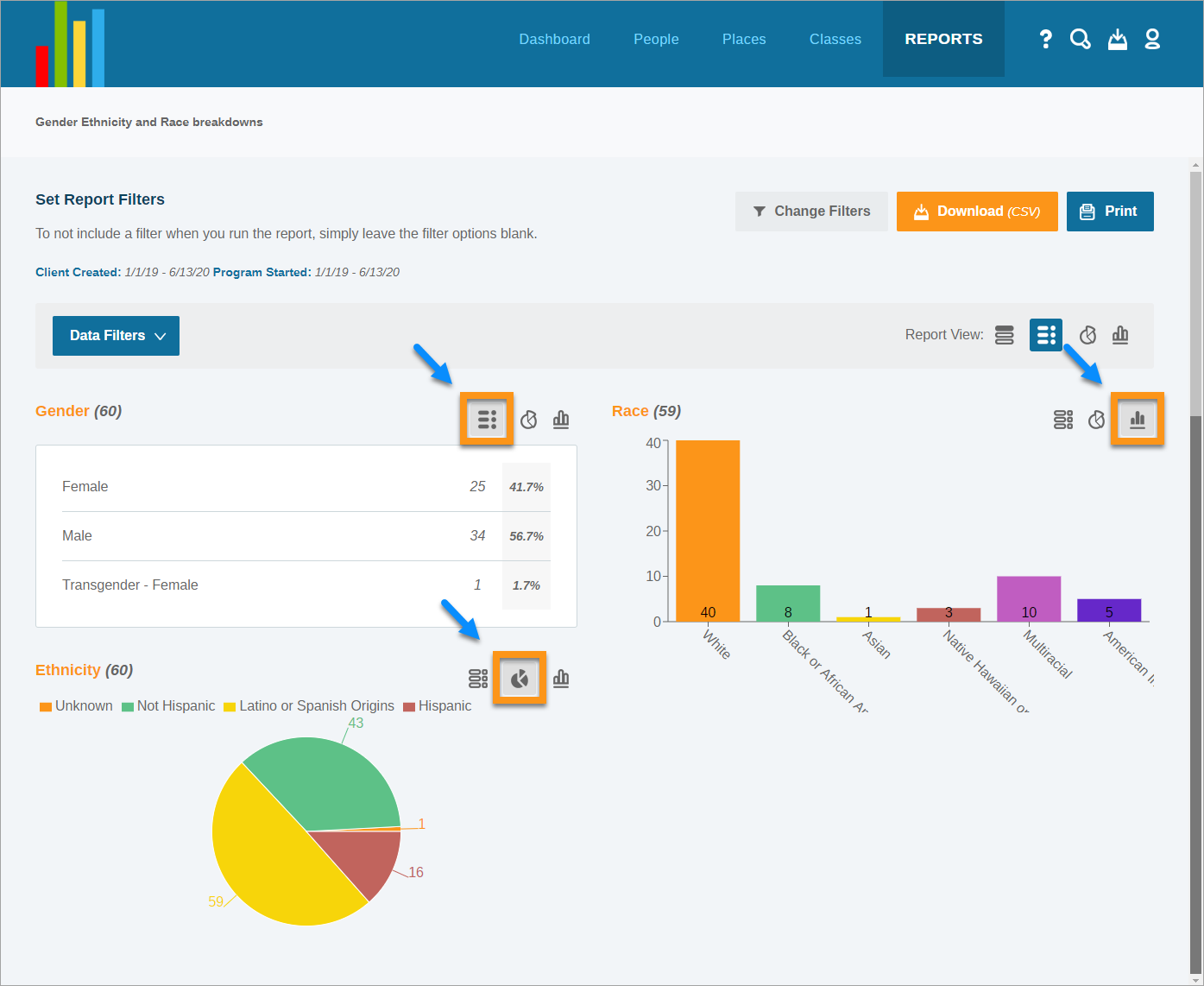
You can also filter the report information in any of these three views. Click the Data Filters button located to the left. A box will expand displaying all Report Column categories as drop-down lists. Select as many or as few options from each Report Column to filter data in real time below.
Download Report Results
If you wish to download the report results, click  Download (CSV) button near the top right corner of the screen, then follow your computer's prompts to download the spreadsheet file.
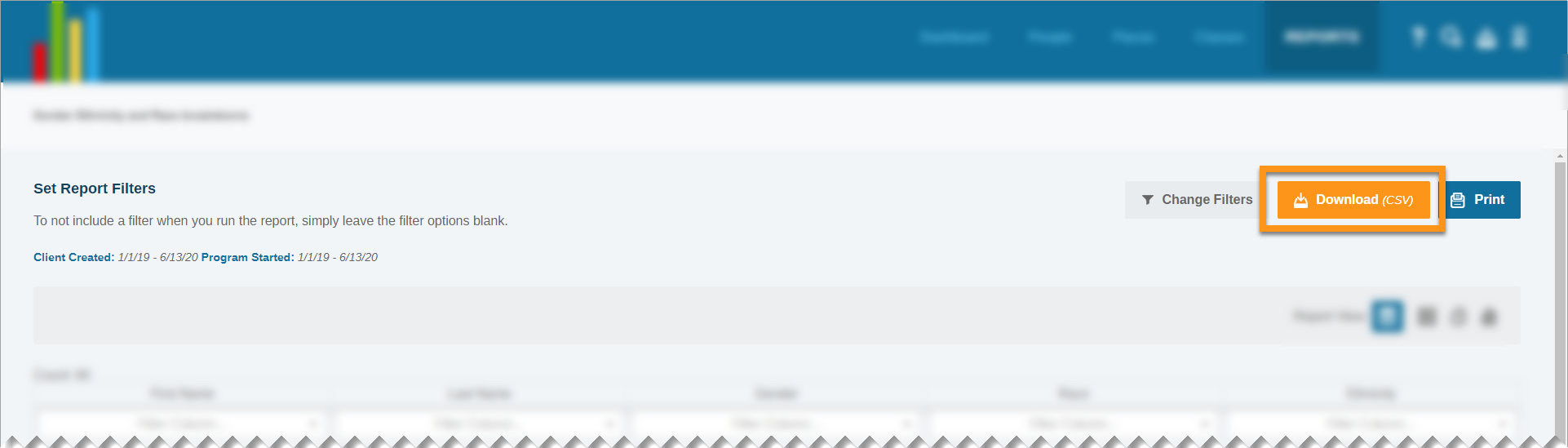
Note: downloading the file as a CSV will download the report in its entirety - column filters selected before clicking Download will not affect the data that is downloaded.
Comments
0 comments
Please sign in to leave a comment.