
Assessment Collections - Standard User
Table of Contents
- Assessment Collections - The Basics
- Conducting an Assessment Collection - The Basics
- View Available Assessment Collections
- Conduct Assessment Collection
- Finalize Assessment Collection
- Schedule Assessment Collection
- View List of Completed Assessment Collections
- View List of Scheduled Assessment Collections
- View Completed Assessment Collection Results
- Delete Scheduled Assessment Collection from Client Record
- Delete Completed Assessment Collection from Client Record
Have additional questions not covered in this article? Hop over to Assessments - Standard User: Frequently Asked Questions and Troubleshooting Tips
Assessment Collections - The Basics
Assessment Collections streamlines the process of giving multiple assessments eliminating the need for users to go back to the Assessments page for each assessment. When a navigator administers an Assessment Collection with a client, each assessment is finalized in succession and moves the navigator and client directly to the next assessment in the collection.
Assessment Collections must be created by Agency Admins before they are available in client records.
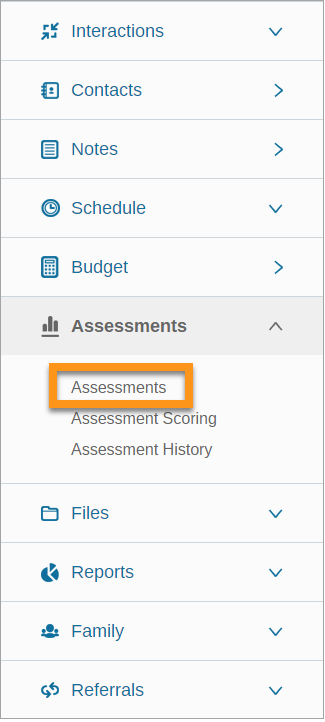
Your organization's Assessment Collections are available via the left sidebar  Assessments → Assessments, then under the Assessment Collections toggle.

From the Assessment Collections page, you can conduct, schedule, and view scheduled and completed assessment collections for every client record.
Conducting an Assessment Collection - The Basics
Once you begin conducting an assessment collection, you will be brought to the first scale of the first assessment within the collection. The assessment Scales will be listed as tabs to the left of the main screen. When a Scale tab is clicked, the system will jump to that scale and outcome statements.
Advance through the assessment by clicking the appropriate scale outcome statement for each scale. After the scale outcome is selected, the system will advance you to the next scale and mark the Scale tab green, indicating an outcome selection has been made.
If you click on a scale tab that has been answered, the selected outcome statement will be indicated with green text and a  checkmark.
If this is not the first assessment of its kind in the client record, the outcome statement that was selected on the most recently conducted assessment will be highlighted in yellow.
When you reach the final scale in the first assessment of the collection, you will be prompted to advance to the Next Assessment in the collection. Click on "Next Assessment" to advance.
When you reach the final scale of the final assessment, the Finalize Collection section will appear below the blue Assessment Group box.
View Available Assessment Collections
- Open client record
- On the left sidebar, scroll and click Assessments
- Click Assessments
- Click the Assessment Collections toggle
- Click the Available Collections drop-down list
- All assessments available to conduct will be listed
Conduct Assessment Collection
- Open client record
- Click Assessments from the left sidebar
- Click Assessments
- Click the Assessment Collections toggle
- Click the Available Collections drop-down list
- Locate and click the assessment collection you wish to conduct
- Click Start
Finalize Assessment Collection
- Open client record
- Click Assessments from the left sidebar
- Click Assessments
- Click the Assessment Collections toggle
- Click the Available Collections drop-down list
- Locate and click the assessment collection you wish to conduct
- Click Start
- Conduct assessment - the system will guide you through each assessment within the collection
- After the final scale outcome statement is selected, you will arrive on the Finalize Collection Assessment page
- Review scale outcome statements for each assessment if desired:
- Select the assessment from the list of Assessment Groups
- Review responses by clicking the Scales tabs
- Select the correct scale outcome statement
- Indicate if follow-up assessment is needed by de-selecting the No follow-up needed checkbox under Next Assessment
- Select the follow-up Date and Time (optional)
- Assessment is scheduled
- Enter the Finalize Date (backdate assessments here)
- Click Finalize Assessment*
- Assessment score will be shown
- Click:
- All assessment scores to view Assessment Scoring
- Assessment History to view scales, add scale services, create a projection or goal plan, or create a scale case note
- ← Assessments to return to the Assessment page
*Assessments cannot be edited after Finalization. See Assessments FAQ - "How can I edit an Assessment after it's been Finalized?" for more.
Schedule Assessment Collection
- Open client record
- Click Assessments from the left sidebar
- Click Assessments
- Click the Assessment Collections toggle
- Under the Schedule Collection section:
- Click the Available Collections drop-down list
- Locate and click the assessment collection you wish to schedule
- Select the Date and enter a Time (optional) for the scheduled assessment
- Click Schedule
- Scheduled Assessment Collection will be created under the Scheduled section
- Navigators assigned to the client record will
- see the scheduled assessment collection on their dashboards
- receive a notification when it is time to conduct the scheduled assessment collection
View List of Completed Assessment Collections
- Open client record
- Click Assessments from the left sidebar
- Click Assessments
- Click the Assessment Collections toggle
- All completed assessments are listed under the Completed Assessment section
View List of Scheduled Assessment Collections
- Open client record
- Click Assessments from the left sidebar
- Click Assessments
- Click the Assessment Collections toggle
- All completed assessments are listed under the Scheduled section
- Navigators assigned to the client record will
- see the scheduled assessment on their dashboards
- receive a notification when it is time to conduct the scheduled assessment
View Completed Assessment Collection Results
- Open client record
- Click Assessments from the left sidebar
- Click Assessments
- Click the Assessment Collections toggle
- Scroll down or use the filter tab to arrive at the Completed Assessment section
- Locate the assessment collection you wish to view
- Click View
- Select the assessment from the Assessment Group box
- View each scale by selecting the corresponding Scale tab to the left
- Responses selected will be indicated with bold, green text and a
 checkmark
Assessments cannot be edited after Finalization. See Assessments FAQ - "How can I edit an Assessment after it's been Finalized?" for more.
Delete Scheduled Assessment Collection from Client Record
- Open client record
- Click Assessments from the left sidebar
- Click Assessments
- Click the Assessment Collections toggle
- All scheduled assessment collections are listed under the Scheduled section
- Locate the scheduled assessment collection you wish to delete
- Click the
 delete icon
Delete Completed Assessment Collection from Client Record
- Open client record
- Click Assessments from the left sidebar
- Click Assessments
- Click the Assessment Collections toggle
- All completed assessment collections are listed under the Completed Assessment section
- Locate the completed assessment you wish to delete
- Click the delete icon
Comments
0 comments
Please sign in to leave a comment.