
Assessment Scoring - Standard User
Topics covered in this article:
Have additional questions not covered in this article? Hop over to Assessments - Standard User: Frequently Asked Questions and Troubleshooting Tips
Assessment Scoring - The Basics
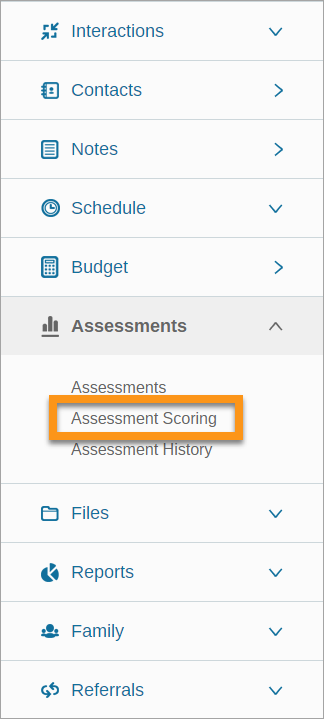
Clients' assessment scores are available via the left sidebar  Assessments → Assessment Scoring. The Assessment Scoring page shows the client's score for each completed assessment.
Assessment Scores provide an overall view of clients’ needs, which can be matched with services, programs, or other appropriate interventions.
Each assessment has a total possible score. This total score is derived from the maximum total value of all scales on the assessment combined. If an assessment has ten scales and each scale has statements worth up to ten points, the assessment would have a max score of 100.
Assessment Scoring shows the total possible points and the client's actual score on the assessment. Just as scales have five outcome statuses, so do the overall scores for each assessment:
- In-crisis - intervention needed, action must be taken
- Vulnerable - intervention needed, action must be taken
- Stable - reexamination if intervention is needed
- Safe - independence/self-sufficiency, intervention not needed
- Thriving - independence/self-sufficiency, intervention not needed
- N/A - the scale is not applicable to the client and is removed from overall scoring
Regular follow-up reassessments can help determine which interventions are most effective and advance client well-being.
View Assessment Scores
- Open client record
- Click
 Assessments from the left sidebar
 - Select "Assessment Scoring"
- Each assessment pack the client has been assessed on is displayed in expandable white boxes and displays:
- Assessment Name
- The most recent score/total possible score
- Score status
- Date of most recent assessment
- Click on the box to expand
- Assessment score history will be displayed showing:
- Score status
- Client's score
- Date of assessment
Filter Assessment Scores
- Open client record
- Click Assessments from the left sidebar
- Select "Assessment Scoring"
- Use the collapsable filters on the left to filter assessment scores by:
- Assessments
- Date range of completed assessment
Comments
0 comments
Please sign in to leave a comment.