
Two Factor Authentication - Set Up and Use
Topics covered in this article:
- What is Two Factor Authentication (2FA)?
- Setting Up Your Two Factor Authentication
- Logging In Using Two Factor Authentication
What is Two Factor Authentication?
Two Factor Authentication (2FA) is an extra security measure that helps to ensure that your clients’ information remains protected from unauthorized users. This extra security measure also ensures that you—and only you—are logging into your eLogic Genesis account as per our Terms & Conditions (under "Assignment") and our HIPAA Policies and Procedures.
2FA requires that you download a third party app on your mobile phone. Every time you log into your eLogic Genesis account, the app will provide you a unique six-digit code. This code must be entered into eLogic Genesis to successfully complete your log in.
Setting Up Your Two Factor Authentication
You will first need to link your mobile phone to your eLogic Genesis login using a third party authentication app. There are many 2FA apps available, however we recommend downloading and using either Google Authenticator or Authy as they are easy to use. Both apps are compatible with iPhone and Android and are available for download through your mobile phone’s app store.
Don't want to primarily use your mobile phone for 2FA? Authy has a desktop version! More below.
Download the app of your choice and select the pertinent link below for help on how to link your mobile phone to your eLogic Genesis account:
- I have downloaded Google Authenticator
- I have downloaded Authy (mobile)
- I have downloaded Authy (desktop)
- I have downloaded a different 2 Factor Authentication app
Using the Google Authenticator App:
- On your mobile phone, open the Google Authenticator app
- Open the app, swipe left to read the instructions of use
- Tap “Get started” when ready to begin
- On your computer, navigate to the eLogic Genesis login screen and enter your login credentials
- After you click Login, you will be directed to a new page that offers two ways to set up your 2FA:
- 32 character alphanumeric Code
- QR Code (recommended)
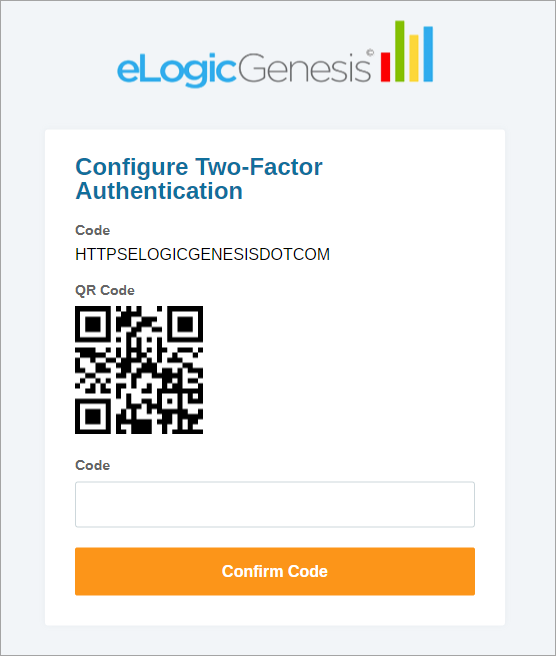
- On your mobile phone, use the Google Authenticator app and tap either “Scan a QR code” or “Enter a setup key” as desired
Scan a QR code (recommended) -
You will need to grant the app access to take pictures and record video on your mobile phone when opting to use the QR code; this is a necessary permission. The QR code will automatically include additional information regarding your eLogic Genesis account and makes set up a breeze.
- Tap “Scan a QR Code”
- Point your phone’s camera at the QR code on your computer screen
- Continue to Logging In After Setup (Google Authenticator app) below
Enter a setup key -
If you do not wish to grant the app access to your camera or prefer to enter the 32 character alphanumeric code manually, please note that there are additional steps you must follow:
- Tap "Enter a setup key"
- Enter the Account name - we recommend you enter your name or your eLogic Genesis username and “eLogic Genesis”
- Ex: betsysue@myagency.com - eLogic Genesis
- Ex: Betsy Sue - eLogic Genesis
- Enter Your key - this is the 32 character alphanumeric shown in eLogic Genesis on your computer (not case sensitive) into the Google Authentication app
- Type of key - leave the selection as “Time based”
- Tap Add
- Continue to Logging In After Setup (Google Authenticator app) below
Logging In After Setup (Google Authenticator app)
In the Google Authentication app, you will see the account has been added and a six digit code displayed under the account name
- On your computer, enter the six digit code into the Enter 2FA Code text field in eLogic Genesis
- Click Confirm Code
- You are now logged in to eLogic Genesis and have successfully completed the 2FA setup
Moving Forward: Every time you log into eLogic Genesis, you will need to open the Google Authentication app on your phone and enter the provided six digit code into eLogic Genesis when prompted. Please note that the Google Authentication app code will expire every 30 seconds (you’ll see a circle countdown to the right of the code). Once the code expires, it will be replaced with a new six digit code that is valid for the next 30 seconds. The code changes regularly to ensure that it cannot be reused or used by another person which also helps to ensure that your account, and your clients’ information, remains secure.
Using the Authy App (Mobile):
- On your mobile phone, open the Authy app
- Open the app and tap the plus sign
- On your computer, navigate to the eLogic Genesis login screen and enter your login credentials
- After you click Login, you will be directed to a new page that offers two ways to set up your 2FA:
- 32 character alphanumeric Code
- QR Code (recommended)
- On your mobile phone, use the Authy app and tap either “Scan QR code” or “Enter Code Manually” as desired
Scan QR code (recommended) -
You may need to grant the app access to take pictures and record video on your mobile phone when opting to use the QR code; this is a necessary permission. The QR code will automatically include additional information regarding your eLogic Genesis account and makes setup a breeze.
- Tap “Scan QR Code”
- Point your phone’s camera at the QR code on your computer screen
- In the Authy app, change your account’s nickname if desired
- Tap Save when finished
- Continue to Logging In After Setup (Authy Mobile App) below
Enter Code Manually -
If you do not wish to grant the app access to your camera or prefer to enter the 32 character alphanumeric code manually, please note that there are additional steps you must follow:
- Tap “Enter Code Manually”
- Enter the 32 character alphanumeric code shown in eLogic Genesis on your computer into the Authy app under “Key” - the code is not case sensitive
- Tap SAVE
- Press the back arrow when prompted to Search logo by app
- Tap “Generic logo” on the right
- Select a color
- Tap CONTINUE
- Enter the Account Nickname - we recommend you enter your name or eLogic Genesis username and “eLogic Genesis”
- Ex: betsysue@myagency.com - eLogic Genesis
- Ex: Betsy Sue - eLogic Genesis
- Tap SAVE
- Continue to Logging In After Setup (Authy Mobile App) below
Logging in After Setup (Authy Mobile App)
- In the Authy app, you will see the account has been added and a six digit code displayed under “[account name] is:”
- On your computer, enter the six digit code into the Enter Code text field in eLogic Genesis
- Click Confirm Code
- You are now logged in to eLogic Genesis and have successfully completed the 2FA setup
Moving Forward: Every time you log into eLogic Genesis, you will need to open the Authy app on your phone and enter the provided six digit code into eLogic Genesis when prompted. Please note that the Authy code will expire every 30 seconds (you’ll see a countdown bar at the top of your phone’s screen). Once the code expires, it will be replaced with a new six digit code that is valid for the next 30 seconds. The code changes regularly to ensure that it cannot be reused or used by another person which also helps to ensure that your account, and your clients’ information, remains secure.
Using the Authy App - Desktop
- On your computer, go to Authy's download page
- Under Desktop, select your machine's operating system from the drop down list - Are you a Windows user and not sure which Windows OS you're using? Follow these steps
- Click DOWNLOAD
- Follow your system's prompts to download and install Authy
- Open Authy and enter your phone number - this is Authy's authentication method. Choosing how you wish to Get Verification Via will deliver you a code in that way so you may complete logging into your Authy account.
- Follow Authy's prompts to finish registering
- Authy desktop app will open in a small window
- Navigate to the eLogic Genesis login screen and enter your login credentials
- After you click Login, you will be directed to a new page that offers two ways to set up your 2FA:
- 32 character alphanumeric Code
- QR Code
- In the Authy window, click the plus sign in the top right corner
- Copy and Paste the 32 character alphanumeric code shown in eLogic Genesis into the Authy app under Enter Code given by the website
- Click Add Account
- Enter the Account Name - we recommend you enter your name or eLogic Genesis username and “eLogic Genesis”
- Ex: betsysue@myagency.com - eLogic Genesis
- Ex: Betsy Sue - eLogic Genesis
- Select a logo from the list below
- Click Save
- In the Authy app, you will see the account has been added and a six digit code displayed under “[account name] is:”
- On your computer, enter the six digit code into the Enter Code text field in eLogic Genesis
- Click Confirm Code
- You are now logged in to eLogic Genesis and have successfully completed the 2FA setup
I have downloaded a different Two Factor Authentication app
- On your mobile phone, open the 2FA app you downloaded
- On your computer, navigate to the eLogic Genesis login screen and enter your login credentials
- After you click Login, you will be directed to a new page that offers two ways to set up your 2FA:
- 32 character alphanumeric Code
- QR Code (recommended)
- On your mobile phone, use the 2FA app and either choose to either Scan a QR code or manually enter a setup key
Scan a QR code (recommended) -
You will likely need to grant the app access to take pictures and record video on your mobile phone when opting to use the QR code; this is a necessary permission. The QR code will automatically include additional information regarding your eLogic Genesis account and makes setup a breeze.
- Follow the app's on-screen instructions to scan the QR code
- Continue to Logging In After Setup (2FA app of your choice) below
Manually enter a setup key -
If you do not wish to grant the app access to your camera or prefer to enter the 32 character alphanumeric code manually, please note that there are likely additional steps to complete account setup.
- Follow the app's on-screen instructions to enter the 32 character alphanumeric code shown on your computer screen
- Complete 2FA account setup as directed by the app
- Continue to Logging In After Setup (2FA app of your choice) below
Logging In After Setup (2FA app of your choice)
- In the 2FA app, you will see there is a six digit code shown with the account you have just created
- On your computer, enter the six digit code into the Enter Code text field in eLogic Genesis
- Click Confirm Code
- You are now logged in to eLogic Genesis and have successfully completed the 2FA setup
Moving Forward: Every time you log into eLogic Genesis, you will need to open the 2FA app on your phone and enter the provided six digit code into eLogic Genesis when prompted. Please note that 2FA codes typically expire after 30-60 seconds (you’ll see a countdown somewhere on your phone’s screen). Once the code expires, it will be replaced with a new six digit code that is valid for the duration. The code changes regularly to ensure that it cannot be reused or used by another person which also helps to ensure that your account, and your clients’ information, remains secure.
Logging In Using Two Factor Authentication
You must first set up your two factor authentication before being able to login
- On your mobile phone, open the 2FA app you used to link to your eLogic Genesis account
- On your computer, navigate to the eLogic Genesis login screen
- Enter your login credentials
- When prompted, enter the 2FA 6 digit code as it appears in your 2FA app into the Enter Code text field in eLogic Genesis
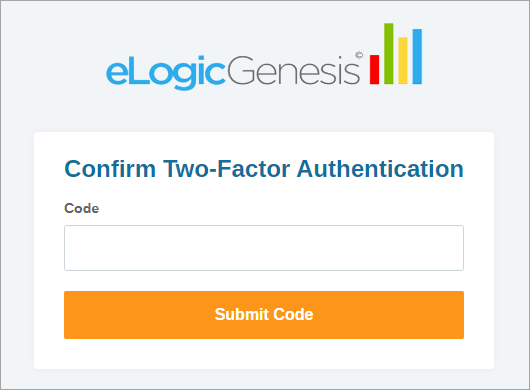
- Click Submit Code
- You are successfully logged in
Every time you log into eLogic Genesis, you will need to open the 2FA app on your phone and enter the provided six digit code into eLogic Genesis when prompted. Please note that 2FA codes typically expire after 30-60 seconds (you’ll see a countdown somewhere on your phone’s screen). Once the code expires, it will be replaced with a new six digit code that is valid for the duration. The code changes regularly to ensure that it cannot be reused or used by another person which also helps to ensure that your account, and your clients’ information, remains secure.
Comments
0 comments
Please sign in to leave a comment.