
eLogic Genesis Client Portal: The Basics
Welcome to the eLogic Genesis Client Portal!
This article will outline critical concepts upon which the Client Portal is based. Please familiarize yourself with this content and reach out to your organization's Client Portal Liaison with any additional questions.
- Purpose Of, and Expectations For, Using the Client Portal
- Organization-specific Record -vs- Global Record
- Global Invitation Link -vs- Direct Invitation
- Client Portal Setup and Appearance
Purpose Of, and Expectations For, Using the Client Portal
Purpose Of
If you are unsure of the purpose of why your organization has decided to utilize the Client Portal, please speak with an Agency Administrator prior to training staff.
Each organization who implements the Client Portal must have a clear purpose as to why clients will be accessing their eLogic Genesis records. This purpose should be clearly communicated to staff members so they may convey this to clients. Telling clients why they will be accessing their records will guide them in utilizing this case management tool.
Why did your organization implement the Client Portal? To what purpose will clients be accessing their records directly? Does your organization expect clients to keep basic demographic information up to date?
Expectations For
If you are unsure of the expectations for clients using the Client Portal, please speak with an Agency Administrator prior to training staff.
Just as stating the purpose of Client Portal use to clients is important, so too is conveying your organization's expectations to clients when they access their records. Are clients expected to be involved in their case management in partnership with their case workers by independently conducting regular assessments, applying to programs, or updating their budget? Or is their access only for informational purposes? What expectations your organization has established must be relayed to clients upon gaining access to their records.
Organization-specific Record -vs- Global Record
Clients have access to two types of records in the eLogic Genesis Client Portal: Organization-Specific and Global Records.
Organization-Specific Record
The first type of record, called an organization-specific record, is how your organization has set up the Client Portal within your agency.
When you log into your eLogic Genesis account, you are logging into your organization's eLogic Genesis system. All demographic fields, programs, forms, and assessments (to name a few of the features) are set up specifically for—and are specific to—your agency. All the staff and client records contained in your agency's system are organization-specific as they are self-contained in your agency.
Global Record
The second type of record, called a global record, are client records that are not connected to an organization and contain only basic client information (name, email address, phone numbers, and preferred contact methods). When a client updates their information in their global record, it automatically updates the corresponding information in each of the client's organization-specific record.
Suppose Sally Smith is a client of three agencies that use eLogic Genesis. Though Sally has three different organization-specific records, one contained in each agency's eLogic Genesis system, she also has access to a single, central record, the global record.
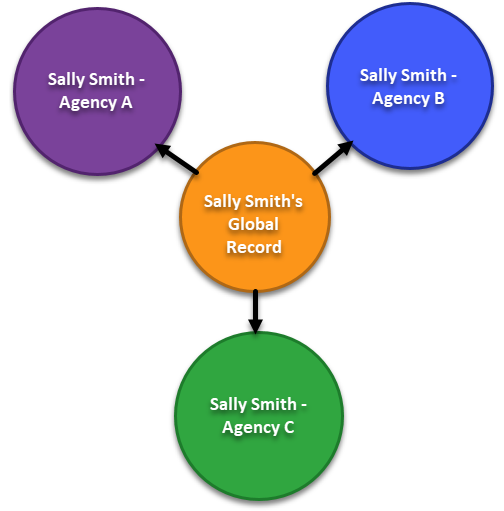
When Sally logs into the eLogic Genesis Client Portal, she is able to move between all four of her records: three organization-specific records and her global record.
How each agency configures their Client Portal will provide Sally with different demographic options, program applications, assessments, forms, and features as they have been set up by each agency when she is logged in.
How each of Sally's records are made accessible via the eLogic Genesis Client Portal depends on how Sally is invited to access her record(s): Global Invitation Link or Direct Invitation.
Global Invitation Link -vs- Direct Invitation
There are two ways individuals or clients can be invited to use the Client Portal to access their record(s): Global Invitation Link or by Direct Invitation.
Global Invitation Link
The Global Invitation Link is an optional feature that must first be set up before it is available for use. If your organization did not create a Global Invitation Link or will not use it, continue to Direct Invitations below.
Individuals who are not yet clients of your organization (people who do not yet have an eLogic Genesis organization-specific record created in your agency) can request to become clients by using a Global Invitation Link.
The global invitation link is a special URL that is created by an Agency Administrator in eLogic Genesis and is specific to each organization. Once your agency's global invitation link is set up and made available for public use, individuals who visit the link will be invited to create a global record in eLogic Genesis. When individuals click this link, they will be prompted to create an eLogic Genesis global record and will alert your agency that they are interested in becoming a client. When accepted into your organization's system as a client, eLogic Genesis will create an organization-specific record for the client within your system.
It is important that existing clients with existing organization-specific accounts in your agency do not use a Global Invitation link. Clients who have an existing organization-specific record in your agency could potentially create a duplicate record in your system if they use the global invitation link. Global invitation links should only be provided to individuals who do not have an eLogic Genesis account in your agency's system. Your Agency Administrator will instruct you how, when, and if you are to provide your organization's global invitation link to invite individuals to eLogic Genesis.
Direct Invitation
The ability to send direct invitations is controlled by the role permission "Client Account Invitations". If you are not able to send direct invitations but would like to, please speak with an Agency Administrator.
Existing clients of your organization who already have an eLogic Genesis record can be invited to use the Client Portal by a direct invitation.
Before a staff member can send a client a direct invitation, the client must have their primary email address entered in their record. Ensuring that clients' primary email addresses are used is vital to preventing the client from creating duplicate global or organization-specific records.
After a staff member confirms the client's email address is correct, they can then send the client a direct invitation. The direct invitation will be delivered to the client via a system-generated email and will contain a link prompting the client to set up their eLogic Genesis access using their email address as their username.
Note that usernames cannot be changed once a client creates an account - this is to ensure that clients do not have multiple logins. Clients can, however, update their email address within their record.
Direct invitations can be resent if needed. Any invitation that was sent previously will be invalidated when a new invitation is sent. If the client does not receive their direct invitation email, be sure the client checks their spam folder.
As a best practice, clients using the Portal should add no-reply@elogicgenesis.com to their email contacts to ensure all notification emails are delivered successfully.
Client Portal Setup and Appearance
Each organization sets up their eLogic Genesis Client Portal as best fits their needs. One organization may wish to grant clients access to only update their demographic information while other organizations may wish their clients to self-assess, apply for programs, and upload files.
Because of the flexibility offered in setting up your Client Portal, your organization's Client Portal will probably look different from other organizations'. Be cognizant that if a client has multiple organization-specific records, they will likely see a difference in the type and number of features offered.
Comments
0 comments
Please sign in to leave a comment.