
Client Portal Account FAQ and Troubleshooting
This article contains frequently asked questions and troubleshooting tips regarding Client Portal accounts.
Topics included:
- Browser Used
- Troubleshooting Basic Issues
- Client is Not Receiving System Generated Emails
- Assessments, Forms, and/or Required File Options Not Available to Clients When Logged In
- How do I access the Client Portal help center?
- Questions Regarding Client Records and Invitations (additional table of contents)
Browser Used
Clients accessing their eLogic Genesis records through the Client Portal should use the Google Chrome browser for the best user experience. Using Google Chrome, clients can login on an any desktop, laptop, or mobile device by going to the eLogic Genesis login page at https://app.elogicgenesis.com/login.
Troubleshooting Basic Issues
Before continuing, inquire if the client is using the Google Chrome browser. If the question is escalated to an eLogic Genesis specialist, we may request this information.
The first step in troubleshooting will always be to instruct clients to refresh the page. When the client is logged into eLogic Genesis:
|
Desktop
|
Mobile
|
 refresh button in your web browser (to the left of the address bar)
If the client is still experiencing strange system behavior after refreshing the page, instruct the client to clear their cache. This will often resolve any issue the client is experiencing.
If the issue is not resolved after performing the steps above and reviewing the FAQ and Troubleshooting article, please ask a Client Portal Liaison to submit a ticket on your behalf to the eLogic Genesis Team.
Client is Not Receiving System Generated Emails
Not every action taken in an eLogic Genesis record will produce a notification. Before further troubleshooting, inquire what email notification the client was expecting. Reference this article to see if the expected notification is one of the listed notifications.
Step 1: Ask the Client to Check Their Spam Folder
Clients who are sent a direct invitation will receive an email from no-reply@elogicgenesis.com. Because the invitation is a system generated email, it is possible that it will be automatically routed to the recipient's spam folder. It is important that clients add no-reply@elogicgenesis.com to their contacts so they do not miss any system generated emails in the future (password reset requests, notifications, etc).
If the client has checked their spam folder and still do not see email notifications, proceed to Step 2 below.
Step 2: Check the Email Address in The Client's Record
Open the client's record—or request the client log into their record—and check that the email address entered in the Basic box is correct and is the address they are expecting the email to come to. Though their username is the email address provided when they first gained access to the Client Portal, the email address shown in their record is the address to which all system-generated emails will be delivered.
If the email address in their record is correct, proceed to Step 3 below.
Step 3: Ask the Client Check Their Notification Settings
Just as you choose how to receive notifications from eLogic Genesis, clients can also choose how they will receive notifications/updates regarding their record. The link below is the article in the Client Portal Help Center. Please provide it to the client and ask them to check that their email notification settings are enabled:
Note that enabling the email notification settings will not work retroactively; the client may need to wait for another notification to be triggered to see if they are being emailed correctly.
If they have confirmed that their email notifications are enabled and have still not received anything, please ask a Client Portal Liaison to submit a ticket on your behalf to the eLogic Genesis Team for further review.
Assessments, Forms, and/or Required File Options Not Available to Clients When Logged In
Assessments
Assessments only become available for clients to conduct via the Client Portal under two circumstances:
- The Assessment is required for program application.
- The Assessment has been scheduled by a navigator and the Assessment Due date has arrived or passed. View a client's scheduled assessments by following these steps.
Ask the client to what purpose they would like to conduct an assessment.
If they are interested in applying for a program, be sure they have created the program application in their record. Once created, this will "unlock" all assessments that have been selected as required for the application.
If they are interested in self-assessing for any other reason, you can schedule the assessment for them using the current date as the Due Date. The assessment will be available to them when they refresh their page.
Forms
Electronic forms only become available to clients who have a program application created in their record -or- if the form is created by a navigator.
Program Application
Check the Programs → Applications or Applications tab in the client's record to see that the desired form is set as required for a program, then create the program application—or request the client create the program application—in their record. The form will then become available for the client under the Forms tab.
Create New Form
Create the form in the client record. Once created, the form will be available to clients to fill out.
Required File Options
Like forms, Required File options only become available to clients who have a program application created in their record. If the required file drop-down list does not display any or does not display the correct options to the client, check that they have an active program application in their record. If they do not, create the application—or request the client create the program application—in their record.
How do I access the Client Portal help center?
There is a separate help center with articles that are tailored specifically to clients accessing their records via the Client Portal. Clients can visit the Client Portal help center after they log into their record by clicking the help icon  in the system navigation bar.
Remember, you can locate and send help center article links directly to clients should they have a question on how to perform an action when using the Client Portal. Do not send clients links to help center articles from your help center.
You can visit the Client Portal help center here.
Questions Regarding Client Records and Invitations
- How do I know if a client already has a Client Portal account created?
- How do I turn off/block a client's access to the Client Portal?
- How can I view which clients already have a Client Portal account created?
- How do I send a Client Portal direct invitation?
- How can I resend a Client Portal direct invitation?
- Can I resend a client's direct invitation to a different email address?
- Can the client's email address be updated after sending a direct invitation to the Client Portal?
- How can I rescind a client's direct invitation to the Portal?
- How can I see if an email address is being used for another client's Portal login?
- The client did not receive their direct invitation.
- The client's email address is already assigned to another client account.
- The client used a Global Invitation Link but received an error saying "You already have a record in this agency"
- A client has more than one Client Portal login (duplicate record).
- How do I update the client's username for Portal login?
- How do I update the client's email address?
- How do clients log into their account?
- How can clients reset their password?
- What can clients do if they forgot their password to login?
- How do clients report issues with their account or logging in?
How do I know if a client already has a Client Portal account created?
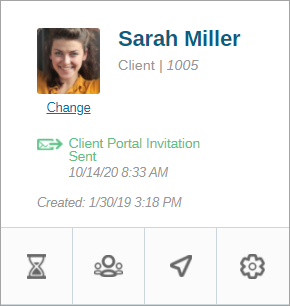
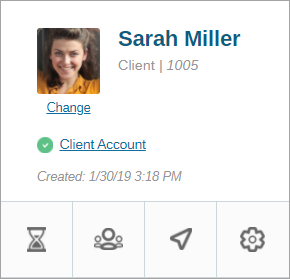
Open the client's record and look at the client information box in the top left corner:
- If there is no text regarding the Client Portal or a client account, the client has not yet been sent a direct invitation for your organization.
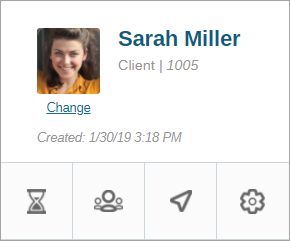
- If
 Client Portal Invitation Sent is shown, the client has been sent an invite but has not yet completed setting up their Client Portal account.
- If
 Client Account is shown, they have successfully set up their Client Portal account.
back to top back to Records and Invitations TOC
How do I turn off/block a client's access to the Client Portal?
There can be numerous reasons why an organization can turn off a client's access to their record via the Client Portal. See Change Client Portal Record Status for step-by-step instructions how to ban a client from using the Client Portal.
This action can be undone at any time by simply changing their Client Portal Status back to Active.
back to top back to Records and Invitations TOC
How can I view which clients already have a Client Portal account created?
Navigate to the People Page:
- Click FILTERS near the top right corner of the main screen
- Be sure TYPE is set to Client and STATUS is set to Active
- From the list of checkbox options on the right, select "With user accounts"
- Clients with active Client Portal accounts will display below
- Remember, filter settings will remain as selected - When finished, be sure you reset your filters as desired

back to top back to Records and Invitations TOC
How do I send a Client Portal direct invitation?
Creating and sending direct invitations to clients is controlled by a Role Permission that must be enabled for your role. If you do not have access to the options described for this action, speak with an Agency Administrator to enable the "Client Account Invitations" Role Permission.
To learn how to create a Client Portal account for a client, see this article.
back to top back to Records and Invitations TOC
How can I resend a Client Portal direct invitation?
Resending direct invitations to clients is controlled by a Role Permission that must be enabled for your role. If you do not have access to the options described for this action, speak with an Agency Administrator to enable the "Client Account Invitations" Role Permission.
To learn how to resend a Client Portal invitation to a client, see this article.
back to top back to Records and Invitations TOC
Can I resend a client's direct invitation to a different email address?
If a client has not yet completed setup of their account, you can change the email address and resend the Client Portal direct invitation to another email address. Resending an invitation will invalidate the previous invitation.
- Open client record
- Enter the new email address in the Basic intake box
- Click anywhere outside the textbox, the system will save automatically
- Under the record information box, click the
 Options navigation icon
 - Click Send Client Invitation
- System will prompt for confirmation that you wish to send the client an invitation to the Client Portal - Click Confirm
- Confirm with the client that the email address entered in their record is accurate
- IMPORTANT: the client's email address will become their username when accessing the Client Portal. Confirm that:
- The client does not already have Client Portal access
- This is the client's primary email address
- IMPORTANT: the client's email address will become their username when accessing the Client Portal. Confirm that:
- If the client does not already have Client Portal access and that the email address supplied is their primary email address, click Yes
- New invitation is sent to supplied email address, previous invitation is invalidated
back to top back to Records and Invitations TOC
Can the client's email address be updated after sending a direct invitation to the Client Portal?
Yes, the client can update the email address in their account, but their username will remain unchanged. Once a client's account has been created, their original email address will be locked in as their username.
It is important that clients keep the email address entered in their record up to date so they may continue receiving system generated emails.
back to top back to Records and Invitations TOC
How can I rescind a client's direct invitation to the Portal?
Once a direct invitation has been sent to the client, there is no way to cancel the invitation.
back to top back to Records and Invitations TOC
How can I see if an email address is being used for another client's Portal login?
Use the Global Search feature and search for the client's email address. If there are no results, the email address is not being used for another client's Portal login.
back to top back to Records and Invitations TOC
The client did not receive their direct invitation.
If the client's record shows Client Portal Invitation Sent in the client information box but the client did not receive their invitation email, follow the troubleshooting steps below in order:
- Confirm that the email address in the client's record is correct
- Request the client check their email's spam folder for the invitation email
- Have the client add no-reply@elogicgenesis.com to their contacts list
Once the above troubleshooting steps have been taken, try resending the invitation (any new invitation email generated will invalidate the previous invitation).
back to top back to Records and Invitations TOC
The client's email address is already assigned to another client account.
If another record is using the client's email address, further investigation may be warranted:
- Is the email address shared by family members or friends?
- Does the client have duplicate records created in eLogic Genesis?
- Has the client logged into eLogic Genesis via the Client Portal before?
If the email address is shared among multiple people, the client must provide a new email address that is unique to only them.
If the client has a duplicate record in eLogic Genesis, do not send a direct invite using a different email address in the duplicated record. Read more about duplicate records here.
Confirm if the client has or has not logged into the Client Portal. If they have, instruct them to continue using their credentials and do not send a new invitation.
back to top back to Records and Invitations TOC
The client used a Global Invitation Link but received an error saying "You already have a record in this agency"
If the client has an existing record with their email address in your organization and they click your organization's Global Invitation Link, they will receive an error message that says "You already have a record in this agency".
A navigator will need to locate and open the client's record, then send them a direct invitation to use the client portal.
back to top back to Records and Invitations TOC
A client has more than one Client Portal login (duplicate record).
eLogic Genesis has a feature that helps prevent duplicate records from being created. Read more about the Duplicate Finder here.
Client records cannot be merged in eLogic Genesis, so it is critical that duplicate client records be avoided. We recommend that prior to creating a new client record, navigators use the Global Search feature for each of the following data points:
- Client's first name only
- Client's last name only
- Client's date of birth
- Client's primary email address
If a client has duplicate records, take the following steps to manually combine the client's records:
- Open both the original record and the duplicate record in two different browser tabs
- Determine the original record and duplicate record by comparing the Created dates shown in the record information box. The record with the oldest Created date is the original.
- Place the records side by side on your screen so you can easily see both records at the same time
- In both the original and duplicate records, advance through each pertinent section and update the original with any data shown in the duplicate.
- Be sure to backdate each item as appropriate (i.e.: finalization dates, start dates, end dates, note dates, etc.)
- When finished, delete the duplicate record
back to top back to Records and Invitations TOC
How do I update the client's username for Portal login?
Usernames are locked in as the original email address provided when they first create their Client Portal login and cannot be changed. Be sure the client provides their primary email address prior to sending a direct invitation to the Client Portal.
back to top back to Records and Invitations TOC
How do I update the client's email address?
Open the client's record. In client intake under the Basic intake box, enter the client's new email address. It is important that clients keep the email address entered in their record up to date so they may continue receiving system generated emails.
Important note: updating the client's email address in their record will not change their username when logging into the Client Portal. Once a client's account has been created, their original email address will be locked in as their username.
back to top back to Records and Invitations TOC
How do clients log into their account?
Clients log into their eLogic Genesis account the same way as staff:
- Go to https://app.elogicgenesis.com/login
- Enter Username
- Enter Password
- Click Login
back to top back to Records and Invitations TOC
How can clients reset their password?
Clients can reset their passwords the same way as staff by logging in and clicking "Change Password" under the user menu.
Client Portal help center article here.
back to top back to Records and Invitations TOC
What can clients do if they forgot their password to login?
If a client forgot their password on login:
- Instruct them to use the Forgotten Password link on the login screen
- Enter their Username
- Click Request Reset
- An email with a reset link will be sent to the email address in the client's record
If the client does not receive a password reset email:
- Request the client check their email's spam folder for the invitation email
- Have the client add no-reply@elogicgenesis.com to their contacts list
- Ask them to repeat the forgotten password reset steps listed above
back to top back to Records and Invitations TOC
How do clients report issues with their account or logging in?
If a client is experiencing issues with their Portal account or logging in, please contact your organization's designated Client Portal Liaison(s) for assistance.
back to top back to Records and Invitations TOC
Comments
0 comments
Please sign in to leave a comment.