
The People Page
Topics covered in this article:
People Page - The Basics
When you first login to your eLogic Genesis account, you will arrive on the People Page. The People Page is the centralized location for all records in eLogic Genesis, whether they are client or navigator records, and is located in the System Navigation Bar.
The People Page has three major areas and each function available within each section is broken down throughout this article:
- Sub-navigation bar - this is the bar located directly under the System Navigation Bar
- Main Screen - this section contains additional information and tools to filter records displayed
- Client List - each record displays additional information
For instructions on People Page's functions please follow this article. To preview different views click here.
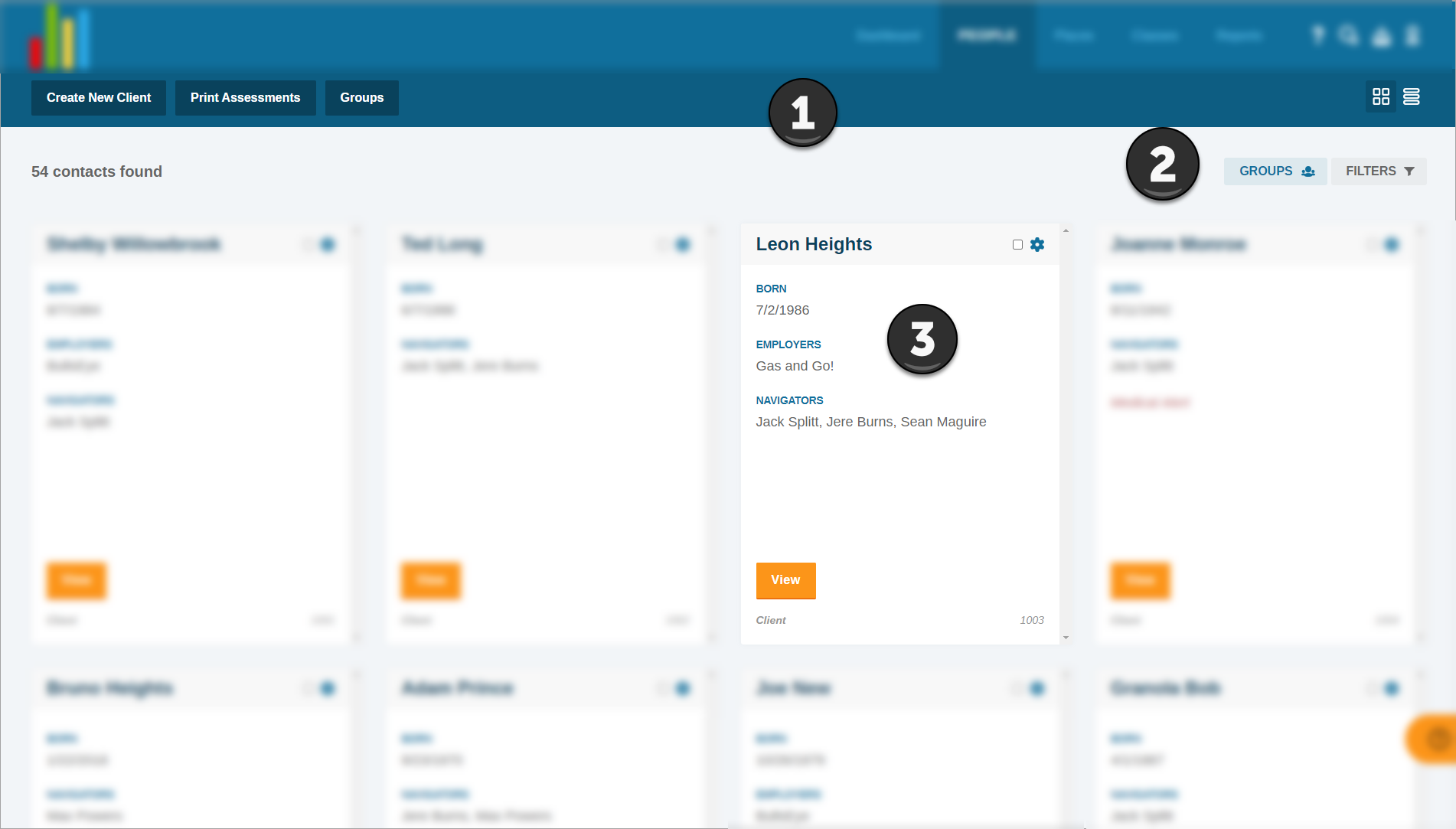
Sub-navigation Bar - People Page
The sub-navigation bar is the bar located directly under the System Navigation Bar.

The People page's Sub-navigation bar tools and features:
- Create New Client
- Print Assessments
- Groups
- The Groups button will bring you to the Groups feature. Groups are accessible via the People page or client records.
- Grid View
- List View
Main Screen
The main screen is the area below the sub-navigation bar and above the client list on the People page.

Main Screen features and tools:
- Record Count for currently selected filters ➺

- Groups Filter
- Filters
Client List
Client information tiles will always display the same information, regardless of grid or list view.
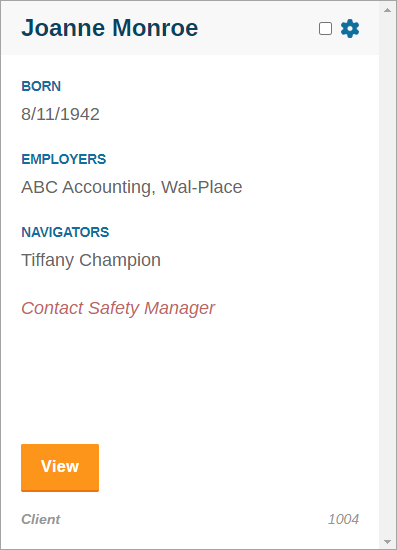
- Name
- Date of Birth
- Employers (past and present)
- Assigned Navigators
- Warning Indicators (if selected in client intake page)
- If the record belongs to a Client or Employee
- Case number
Click View to open the record to the intake page.
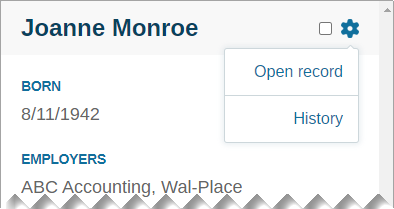
Each information tile has a check-box (used for deleting multiple client records) and a drop-down menu which can be used to open the record to the intake page or jump directly to the record's Assessment History page.
Comments
0 comments
Please sign in to leave a comment.