
Assessment History - Services - Standard User
Topics covered in this article:
- Scale Services - The Basics
- Assign a Scale Service
- Enter/Edit a Scale Service's Information
- Add a Scale Service note
- Delete a Scale Service
- Use Funding Stream to Pay for Scale Service Cost
- Filter Assigned Scale Services
- View Direct or Referral Services for Assignment
Have additional questions not covered in this article? Hop over to Assessments - Standard User: Frequently Asked Questions and Troubleshooting Tips or Services - Standard User: Frequently Asked Questions and Troubleshooting Tips
Scale Services - The Basics
Your organization's scale services are available for assignment in two locations: Assessment History and the Services tab. This article focuses on scale service assignment via Assessment History only.
A scale service is a service that is associated with an outcome on a social determinant scale and has the potential to improve a client's well-being and cause a positive movement on that particular scale. The provision of a "Monthly bus pass" scale service could move a client from "Can't afford public transit" to "Public or private transportation always available" on a Transportation scale. The provision of scale services that change a client's outcome must be documented and monitored for effective case management.
To learn more about the Services tab, see this article.
To learn why Quick Services are not available under Assessment History, see this article.
To access Services via Assessment History, click Assessments from the left sidebar, then select Assessment History.
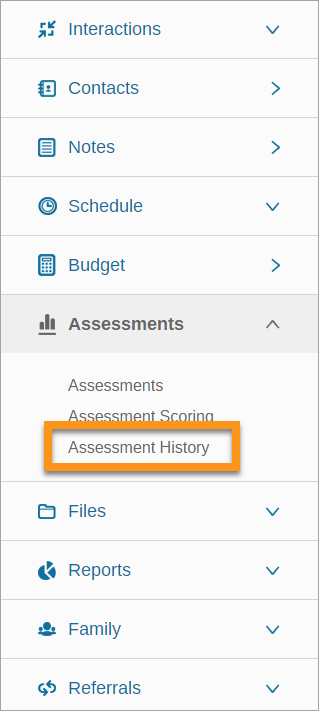
The Assessment History screen has four major areas:
- Assessments - this page will show all assessed scale outcomes
- Services - assign and view scale services
- Goal Plans/Projections - create scale projections and scale goal plans
- Scale Notes - create and view Scale notes
This article will focus on the Services area.

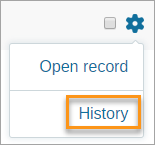
Want a shortcut to Assessment History? From the People Page, locate the client record, click the  settings icon for their record, and select History.
Assign a Scale Service (Via Assessment History)
There are two ways to assign a Service from the Assessment History page:
- Locate the associated Scale, then add the service directly
- Add new service button at the top of the page
Locate the associated Scale, then add the service directly
- Open client record
- Click
 Assessments from the left sidebar
 - Select "Assessment History"
- Click the Services toggle
- Locate the scale of the service you wish to assign
- Click the Service drop-down list
- Select the service you wish to assign
- Click Add
- Service will appear below in a grey bar
Add new service button at the top of the page
- Open client record
- Click Assessments from the left sidebar
- Select "Assessment History"
- Click the Services toggle
- Click Add new service - area will expand
- Click the Search services drop-down
- Type the service name - results will filter automatically
- Click the desired service
- Click Add Service
- Service will appear under corresponding Scale below in a grey bar
Enter/Edit a Scale Service's Information (Via Assessment History)
- Open client record
- Click Assessments from the left sidebar
- Select "Assessment History"
- Click the Services toggle
- Locate the scale to which the service is assigned
- Click on the service (grey bar) to expand details
- Enter or edit any of the following information - *required information:
- Status - N/A, Processing, Approved, Denied, Paid
- Site - if this service is offered at multiple locations, select the location of service delivery from the drop-down
- Hours - enter total hours for this service
- *Start Date - enter start date of the service
- End Date - enter end date of the service
- Checkup Date - enter a date you would like to be reminded to check in with the client regarding this service
- Checkup Interval - enter how many days you would like to be reminded to check in with the client regarding this service
- Total Service Cost - enter the cost of the service (this will override the default cost set under Agency Admin → Service creation)
- Select Completed, Client Refused, or Certification Received if applicable
- Click Save
Add a Scale Service Note (Via Assessment History)
- Open client record
- Click Assessments from the left sidebar
- Select "Assessment History"
- Click the Services toggle
- Locate the scale to which the service is assigned
- Click on the service (grey bar) to expand details
- Click
 Add Note
 - Enter all relevant information
- Click Add Note
- Note is accessible under
 Notes from the left sidebar, under the "Scale Notes" category
Delete a Scale Service (Via Assessment History)
- Open client record
- Click Assessments from the left sidebar
- Select "Assessment History"
- Click the Services toggle
- Locate the scale to which the service is assigned
- Click on the service (grey bar) to expand details
- Click the
 delete icon (next to the Save button)
Use Funding Stream to Pay for Scale Service Cost (Via Assessment History)
- Open client record
- Click Assessments from the left sidebar
- Select "Assessment History"
- Click the Services toggle
- Locate the scale to which the service is assigned
- Click on the service (grey bar) to expand details
- Click View/Make Payments
- Under Add New Bill, enter bill Amount, Payment Due date, and select a Funding Stream? from the drop-down list - the bill amount will subtract from the funding stream's total available funds
- Enter Amount, Payment Due date, and select a Funding Stream? from the drop-down list
- Click Add
Filter Assigned Scale Services (Via Assessment History)
- Open client record
- Click Assessments from the left sidebar
- Select "Assessment History"
- Click the Services toggle
- Use the collapsible filters on the left to filter services by:
- Domain - display only scales and services belonging to the selected domain
- Scales - display only the selected scale and associated services
- Statuses - display only scales and services with the selected status (the most recent outcome selection)
- Packs - display scales and services belonging to a specific assessment
Remember that filters can be used simultaneously which will narrow your search. Be sure to check all filters are set correctly if no results or fewer results than anticipated are shown
- Scales and assigned services matching the selected filter(s) are shown
View Direct or Referral Services for Assignment (Via Assessment History)
- Open client record
- Click Assessments from the left sidebar
- Select "Assessment History"
- Click the Services toggle
- Locate the scale of the direct or referral service you wish to view or assign
- Click the Direct or Referral button to view or assign a Direct or Referral service
- Services shown in the drop-down list and existing services assigned to the scale will be either Direct or Referral based on the button selection above
- To view both Direct and Referral services, be sure the All button is selected
Comments
0 comments
Please sign in to leave a comment.