
Services - Standard User (Via Services tab)
Topics covered in this article:
- Service tab - The Basics
- About the Services Page
- Assign a Service
- Enter/Edit Service Details
- Enter/Edit Service Payment Information or Use a Funding Stream
- Add a Service note
- Delete a Service
Have additional questions not covered in this article? Hop over to Services - Standard User: Frequently Asked Questions and Troubleshooting Tips
Service Tab - The Basics
All of your organization's services are available for assignment in the Services tab in the client record.
- Direct - a service provided by your organization
- Referral - a service provided by another entity
- Quick
 - a service that is not associated with an outcome scale, does not measure movement
 - Scale
 - a service that is associated with an outcome scale, measures movement
To learn more about Quick and Scale Services, see this article.
To learn more about assigning Scale services via Assessment History, see this article.
To access the Services tab, open the client record and click Services from the intake navigation bar. The service page will display a total Count of services assigned to the client record and their total documented Cost. All services assigned to the client are shown in the table below. Quick services are denoted by a lightning bolt and Scale services are denoted by a histogram . Hover your mouse over any service and click  more to expand. Once expanded, you can view or edit service information or create a new service case note.
Services Page
The Services page contains a filter bar and a table that displays all services entered in the client record.
Filter Bar
Across the top of the Services main screen, you'll see a blue  filter bar which contains different filters categories. Each category will expand and show different filter options when clicked. When each filter is selected or removed, the table below will display only services that match the filter options selected.

It may seem that some filter drop-downs display fewer options than they should. These are “smart” filters and are designed to display only options that are relevant to the services entered.
Once a filter option is selected, it can be removed by clicking the check box in the drop-down, clicking Clear all in the drop-down, or by clicking the grey rectangle shown under Selected Filters beneath the filter bar.
Filter Options
- Name - filter services by name
- Type - filter by Direct or Referral services
- Domain - filter services by Domain(s)
- Scale - filter services by Scale(s)
- Status - filter services by status(es)
- Start Date - filter services that started within a date range
- End Date - filter services that ended within a date range
- Created By - filter services that were created by specific navigators
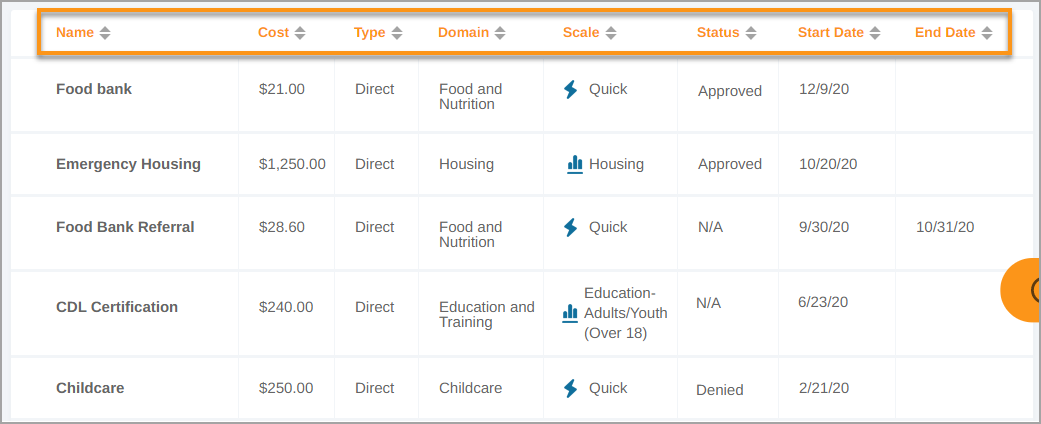
Services Table and Column Headers
Easily sort services in client records by clicking the arrows next to each column header. The arrows will sort the table in ascending/descending order according to the data in the column.
Assign a Service (Via Services Tab)
Please note:
➺ A service cannot be assigned within the date range of an active service of the same kind. For example,
if your Agency provides a client service X for a month, the client cannot be assigned service X until the previous service has expired.
- Open client record
- Click the Services tab
- Click Add New Service in the top right corner
- Click the Search services drop-down
- Locate the desired service - type the service name to locate it immediately
- Click the desired service
- Edit Start Date if different than current date
- Enter End Date and/or Checkup Date (optional)
- Click Assign
- Service appears in table below sorted by the Start Date column
Enter/Edit Service Details
- Open client record
- Click the Services tab
- Locate and hover your mouse over the service
- Update the following information by clicking the field in the service row:
- Total Service Cost - enter the cost of the service
- Status - N/A, Processing, Approved, Denied, Paid
- Start Date - enter start date of the service
- End Date - enter end date of the service
- Click more to expand for additional service information
 Service Details:
- Site - if this service is offered at multiple locations, select the location from the drop-down
- Hours - enter total hours for this service
- Checkup Date - enter a date you would like to be reminded to check in with the client regarding this service
- Checkup Interval - enter how many days you would like to be reminded to check in with the client regarding this service
- Service Completed, Client Refused, or Certification Received as applicable
- Click Save Changes when finished - service information will close
Enter/Edit Service Payment Information
- Open client record
- Click the Services tab
- Locate and hover your mouse over the service
- Click more to expand for additional service information
- Click the
 Payments sub-menu to expand
- Outstanding Costs are shown
- Add service cost information under Add New Bill
- Amount - Enter the amount of the bill
- Payment Due - Enter the due date of the bill
- Funding Stream? - If applicable, choose from the drop-down menu which funding stream will be paying the bill. The bill amount will subtract from the funding stream's total available funds.
- Click Add
- Click Save Changes when finished - service information will close
Add a Service note (Via Services Tab)
- Open client record
- Click the Services tab
- Locate and hover your mouse over the service you wish to add a note to
- Click more to expand
- Click
 Add Note - screen overlay will appear
 - Enter all relevant information
- Click Add Note
- Note is accessible under
 Notes from the left sidebar
- Learn how to view Notes here
Delete a Service (Via Services Tab)
- Open client record
- Click the Services tab
- Locate and hover your mouse over the service you wish to delete
- Click the
 delete icon to the left of the service name
- After the delete icon turns into a
 redo icon, that is your verification that the service has been deleted and will disappear once you leave the page
 - If you wish to undo the delete, click the
 redo button
- After the delete icon turns into a
Comments
0 comments
Please sign in to leave a comment.