
Client Reports - Standard User
Topics covered in this article:
- Client Reports - The Basics
- Client Report Options and Definitions
- Domain Performance Report & Pack Performance Report
- Run Client Case History Report
- Run Client or Family Intake Report
- View Work Log
- Add Work Log Entry
- Edit Work Log Entry
- Delete Work Log Entry
- Print Work Log
- View Transaction Report
- Run Domain Performance Report
- Run Pack Performance Report
Client Reports - The Basics
eLogic Genesis'  Client Report feature is accessible in client records via the left sidebar.
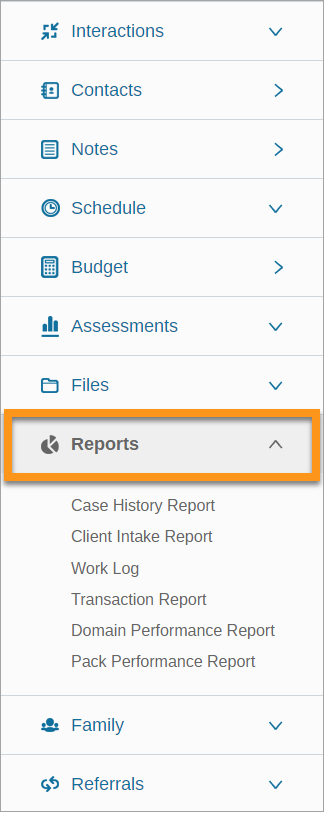
Client Reports deliver individual record information on a client or family level.
Client Report Options and Definitions:
- Case History Report
- Client Intake Report
- Work Log
- Transaction Report
- Domain Performance Report & Pack Performance Report
- "Client Only" Checkbox
Case History Report
Case History Reports are a useful tool to review a client's case and analyze measures taken and movement made. Case History Reports focus on clients' full Assessment History and can be printed for paper records.
The Case History Report pulls data from the record's entire Assessment History and shows:
- Client name
- Assigned navigator(s)
- Agency name
- Baseline (first primary assessment) date
- Last assessment date
- Date the report was run
- Scales
- outcome statements selected
- date of entry
- outcome status
- A histogram of the previous five scale selections
- A comprehensive list of all Direct and Referral services provided
- All scale goal plans, objectives, and steps
- each's start dates
- complete objectives and steps
- Scale notes
- note Date
- note Hours
- note Tag(s)
- Note body
back to Client Report Options back to top
Client Intake Report
Client Intake Reports can be run for an individual client or multiple family members for any date range on a variety of intake areas. Client Intake Reports are a useful tool to view relevant intake data in one screen and can be printed for paper records. Client Intake Reports can be run with as many or as few filters as desired.
The Client Intake Report pulls data from the client's and family's records and shows a real-time display of client and family member intake information in the following intake areas:
- Assessments
- Budget
- Demographics
- Education
- Employment
- Programs
- Services
back to Client Report Options back to top
Work Log
Agency Admins must first set up Work Logs before they are available in client records.
Work Logs provide an area within eLogic Genesis to document income and hours worked for non-traditional employment. With Work Logs, navigators can record which Worksites clients work, the dates they worked, the hours worked, the pay rate, and the total earned for each entry. Income earned on Work Logs are not calculated into the client's budget.
back to Client Report Options back to top
Transaction Report
The Transaction Report logs all updates made in a client's intake page. This activity is logged for accountability purposes.
back to Client Report Options back to top
Domain Performance Report & Pack Performance Report
There are two types of Assessment Performance Reports: Domain and Pack. The type determines the layout of the report.
The Domain Performance Report shows a client's outcome progress via a collection of histograms. The Domain report lists out all scales the client has been assessed on separated by domain.
The Pack Performance Report enables the user to select any number of Assessment Packs, each of which is displayed in the report along with the associated scales.
Both Assessment Performance Report types also contain comment boxes for each category (either Assessment Pack or Domain), as well as a summary comment box at the bottom. The reports can be saved as well as printed for distribution to clients if desired. The histograms will always be up to date, but all the content entered is saved with the report.
back to Client Report Options back to top
"Client Only" Checkbox
On the Agency Admin General Tab there is a section titled Report Only My Clients. Checking the box will enable this setting, restricting reporting for navigators to only their assigned clients. Clients not assigned to the navigator will not appear in any of their reports.
back to Client Report Options back to top
Run Client Case History Report
- Open client record
- Click Reports from left sidebar
- Select Case History Report
- Report by Assessment Packs
- Select which assessment packs on which you wish to report
- The assessment pack will turn orange and be added to the report
- Click the assessment pack again to remove it from the report
- Report by Assessment Scales
- Under Assessment Scales, select the Domain that contains the Scales on which you wish to report
- Click the
 plus sign to add that Scale to the report
 - Selected Scales will appear to the right under SELECTED SCALES
- Click the
 delete icon to remove the scale from the report
- Click the
- Report by Assessment Packs
- Click View Report
- Report results can be printed by clicking the
 Print button in the top right corner
Run Client or Family Intake Report
- Open client record
- Click Reports from left sidebar
- Select Client Intake Report
- Select which Report Data you wish to report
- Note: default Demographic selections can be set by Agency Admins via Agency Settings → Client Intake Report Fields
- Enter Start Date and End Date -OR- select a Defined Date Period from the drop-down list
- leave blank if you wish to report on all historical data
- Click Run Report
- If client is a member of a household, all household member names will be displayed in buttons
- Select or de-select client names to update report results
- Report results can be printed by clicking the Print button in the top right corner
View Work Log
- Open client record
- Click Reports from left sidebar
- Select Work Log
Add Work Log Entry
- Open client record
- Click Reports from left sidebar
- Select Work Log
- From the drop-down list, select worksite
- Click Add Work Log Entry - Work Log Entry will appear below
- Enter Date, Hours, and hourly Pay Rate
- Click Save
Edit Work Log Entry
- Open client record
- Click Reports from left sidebar
- Select Work Log
- Locate the Work Log Entry you wish to edit
- Click the
 settings icon
 - Make any relevant changes
- Click Save
Delete Work Log Entry
- Open client record
- Click Reports from left sidebar
- Select Work Log
- Locate the Work Log Entry you wish to delete
- Click the
 delete icon
Print Work Log
- Open client record
- Click Reports from left sidebar
- Select Work Log
- Click
 Print Work Log near the top right corner
View Transaction Report
- Open client record
- Click Reports from left sidebar
- Select Transaction Report
- Transaction History will show:
- Field name
- Previous selection/data
- Current selection/data
- User - name of the user who changed the field and their eLogic Genesis username
Run Domain Performance Report
Agency Admins must first identify which Assessments are to be included on the client Performance Reports before reports can be run
- Open client record
- Click Reports from left sidebar
- Select Domain Performance Report
Run Pack Performance Report
Agency Admins must first identify which Assessments are to be included on the client Performance Reports before reports can be run
- Open client record
- Click Reports from left sidebar
- Select Pack Performance Report
Comments
0 comments
Please sign in to leave a comment.