
Ad Hoc Report Builder
Topics covered in this article:
- Ad Hoc Reports - The Basics
- Ad Hoc Report Filters - The Basics
- Ad Hoc Statements and Rules - The Basics
- Build Ad Hoc Report
Ad Hoc Reports - The Basics
Ad Hoc Reports are statement-based reports. The report builder enters statements and assign various Rules which will pull client records that satisfy the statements.
Ad Hoc Report Application examples: Run regular Client Diagnostic Reports to check data quality and completeness in all new client records created in the previous couple weeks, view service distribution among specific demographic groups, measure employment retention by the number of days employed.
Ad Hoc Report Filters - The Basics
Report Filters are the same for both Ad Hoc and Custom Reports
Report Filters are used to tell eLogic Genesis what to search for. All filters can be “stacked” (used simultaneously) to determine very specific date ranges or data points attached to client records.
There are three kinds of Report Filters:
Date Range Filters
Each report must have at least one date range Report Filter. The available date range report filters are:
- Client Assessed - Report on clients assessed within a date range
- Client Created - Report on clients created within a date range
- Employment Hire Date - Report on clients who were hired within a date range
- First Assessment - Report on clients who were given their first of any assessment within a date range
- Interaction Date - Report on clients who received an interaction within a date range
- Note Date - Report on clients who had a case note dated within a date range
- Program Ended - Report on clients who are leaving a Program within a date range
- Program Started - Report on clients who started in a Program within a date range
- Service Created - Report on clients who had a service created (the date the service was assigned to the client record) within a date range
- Service Started - Report on clients who had a service started (the date entered under "Service Start Date") within a date range
back to Ad Hoc Report Filters back to top
Data Point Selection Filters
Data point selection filters help to deliver pinpointed report results by pulling only records containing the selected data points. The more data point selection filters that contain search criteria upon running the report, the faster the report will run.
The available data point selection filters are:
- Assessment Pack - Report on specific Assessment(s)
- Class - Report on a specific Class
- Client Status - Report on Active, Inactive, or Closed client profiles
- Client Type - Report on clients within your organization established Client Types
- Domain - Used on Service Reports to return only services tied to selected domain(s)
- Educational Institution - Report on clients who have attended specific educational institutions
- Employer - Report on clients who have a specific employer
- Head of Household - Report on clients who are the Head of Household or Individuals in their family unit
- Navigator - Report on specific navigators' clients
- Program - Reports on clients who are enrolled in specific Program(s)
- Service - Report on clients who have received specific service(s)
- Training - Report on a specific Training course
back to Ad Hoc Report Filters back to top
Data Point Range Filter
Data point range filters help to deliver pinpointed report results by pulling only records containing data within the selected data range(s). The more data point range filters that contain search criteria upon running the report, the faster the report will run.
The available data point range filters are:
- Age - Report on a specific age range
- Percentage of Poverty - Report on clients who are within a specific Percentage of Poverty range
back to Ad Hoc Report Filters back to top
Ad Hoc Statements and Rules - The Basics
Ad Hoc Reports are comprised of two key components:
- Statements - user-created sentences
- Rules - report settings applied to the statement
When building an Ad Hoc report, the statement must clearly identify what you wish to capture in the report results. It is the statement that will dictate which Rules must be applied to and calibrated for each statement.
For example, a statement could read, "How many male clients between the ages of 18-40 received a transportation service?" This statement identifies three different data points which must be established using Ad Hoc Rules:
- Gender = male
- Age Range = 18-40
- Service Wildcard = any service in the Transportation domain
Ad Hoc Reports contain different Rule categories:
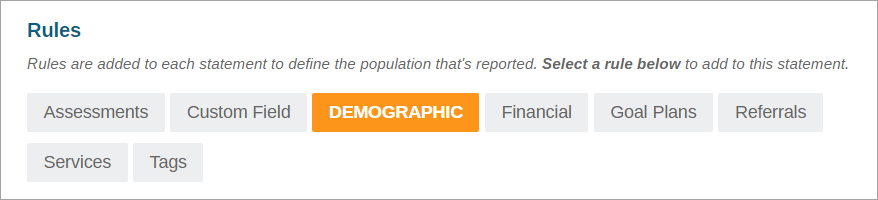
- Assessments - used to identify clients to show assessment provision, assessment movement, and scale outcome selection
- Custom Field - used to identify clients who have a specific response on any custom field
- Demographics - used to identify clients within the desired demographic selections
- Financial - used to identify clients who have experienced an increase, stagnation, or decrease in income or employment wages
- Goal Plans - used to identify clients who do or do not have a goal plan or have a completed goal plan on file
- Referrals - used to identify clients who have received a Quick Referral to a specific Place(s)
- Services - used to identify clients who have or have not received a service or a specific service
- Tags - used to identify clients who have a case note with the selected note tag
When a Rule category is selected, the rules within that category will be displayed below in blue tabs:
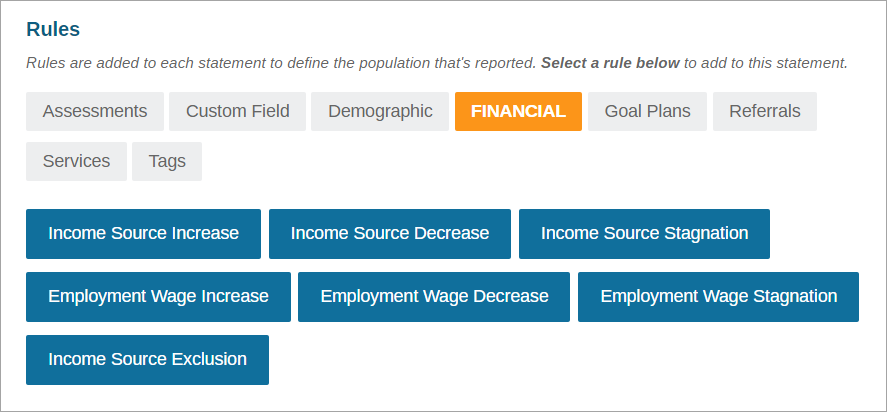
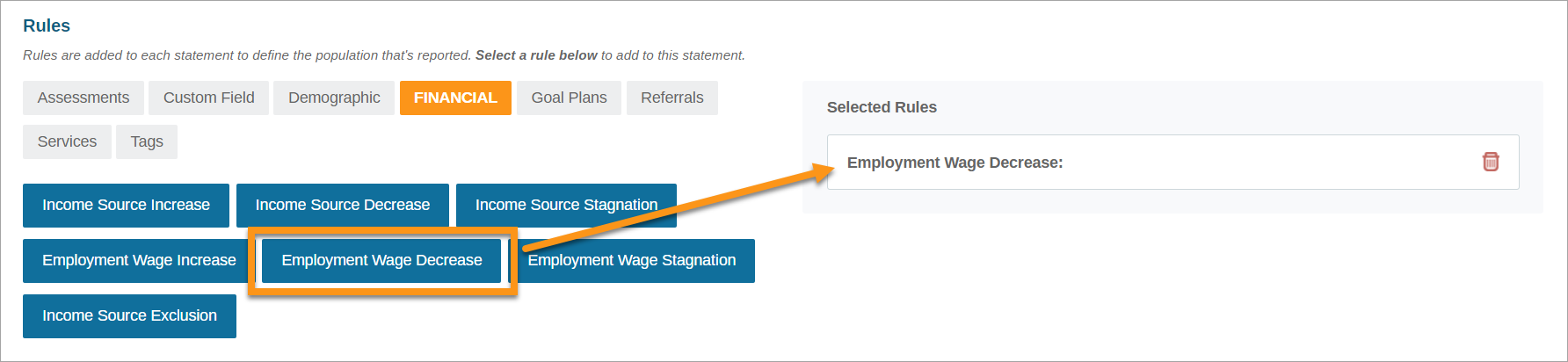
Click the Rule to apply it to the the Statement. Rules that have been applied to the statement will appear on the right under Selected Rules.
Some Rules are ready upon application and do not require additional setup. These rules will have only a  delete icon when the Rule has been selected and is displayed under Selected Rules.
Rules that must be defined and require additional setup will show a  settings icon after it has been selected and is displayed under Selected Rules.
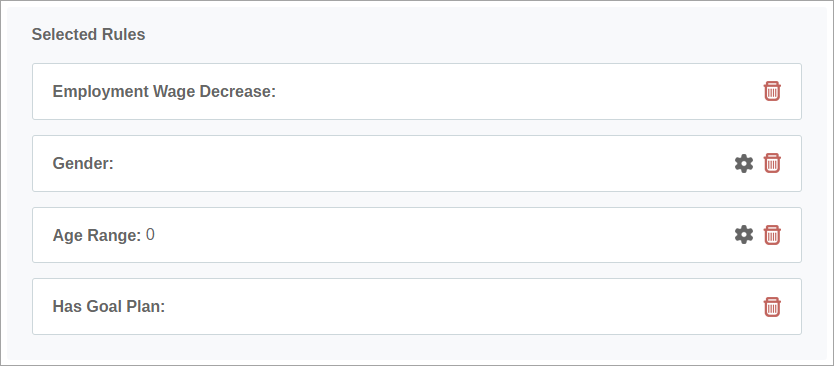
Each Rule setting provides different choices as related to the Rule. The settings page will provide on-screen instructions for each Rule.
To help organize Ad Hoc report results, each statement can be grouped with other like statements. These optional groups are called Statement Headers which can be applied to each individual statement and will group the statements as desired in the report results.
Build Ad Hoc Report
Reminder: You must have the Report Management Role Permission enabled or be an Agency Administrator to build reports
An Ad Hoc Report can be composed of one or many Statements. For Reports containing many Statements, repeat the steps outlined in Add New Report Statement and Select and Set Up Rules for each Statement.
- Create New Report
- Add Report Filters
- Add New Report Statement
- Create Statement Headers
- Select and Set Up Rules
Create New Report
- Click Reports from the system navigation bar
- Click Ad Hoc Reports
- Enter the report name in the textbox
- Click
 New Report
 - Report is available below
- Locate the report and click the settings icon
- Click Edit Report to continue Report creation
back to Build Ad Hoc Report back to top
Add Report Filters
Filters are used to tell eLogic Genesis what to search for. Select which filters you'd like to use – you must establish at least one date range filter. If you wish, select additional data points to search for and include in your report results. All of these filters can be “stacked” (used simultaneously) to determine very specific date ranges or data points attached to client profiles.
- Under FILTERS on the left, locate and click the desired filter
- Filter will appear on the right under SELECTED FILTERS
- Repeat for all desired filters
- When all desired filters are selected, scroll down to Add New Statement.
back to Build Ad Hoc Report back to top
Add New Report Statement
- Click Add New Statement - white rectangle will appear below
- Click the rectangle to expand - statement and rule settings will be shown
- Type statement in the textbox
- Select Statement Header from the drop-down list (optional)
back to Build Ad Hoc Report back to top
Create Statement Headers (optional)
- Click New Header above the Statement Header drop-down list - screen overlay will appear
- Enter Header Name in text field
- Click Save
- Statement Header is now available in Statement Header drop-down list
back to Build Ad Hoc Report back to top
Select and Set Up Rules
- Based on the Statement entered, determine which Rules are needed to define the population that will be reported
- Click each Rule category to see all available Rules
- Select the desired Rule(s)
- Selected Rule(s) will be added to Selected Rule on the right
- If the selected Rule(s) show only the delete icon, no further setup is required - skip to step 8
- If the selected Rule(s) have a settings icon, click the icon to set up Rule - screen overlay will appear
- Follow the instructions on the page to determine which selection(s) to make
- Selections will turn orange
- When all selections are made, click Save
- Repeat steps 3-7 for all applicable Rules
- When all Statement Rules are set up, click Save Statement
- Statement is complete
back to Build Ad Hoc Report back to top
When all Statements and Rules have been set up, learn how to run the report.
Comments
0 comments
Please sign in to leave a comment.